Blog
News
Publish an App to App Store & Google Play in 2026
Learn how to publish an app to the App Store and Google Play step by step, from developer accounts to store review approval, and how to deploy to both at once.

Nafis Amiri
Co-Founder of CatDoes

TL;DR: To publish an app to the App Store, enroll in the Apple Developer Program ($99/year), upload your build through App Store Connect or Xcode, fill in your store listing, and submit for review. To publish to Google Play, pay the one-time $25 fee, upload an Android App Bundle in Google Play Console, complete the listing and policy forms, and roll out to production. Apple review usually takes 24 to 48 hours; Google typically takes a few hours to a couple of days. Most teams ship to both stores separately, which doubles the work. CatDoes builds your app and deploys it to the App Store, Google Play, and the web from one place.
You built an app. Now you need it in the hands of real users, which means getting it live on the two stores that matter: Apple's App Store and Google Play. Most guides only cover one. That leaves you stitching together two different processes, two developer accounts, and two sets of rules. This guide walks through how to publish an app to the App Store and Google Play step by step, what each store costs and expects, why apps get rejected, and how to ship to both at once instead of doing everything twice.

Table of Contents
What You Need Before You Publish
How to Publish an App to the App Store
How to Publish Your App to Google Play
App Store vs Google Play: Key Differences
Why Apps Get Rejected and How to Avoid It
Publish to Both Stores at Once With CatDoes
Frequently Asked Questions
What You Need Before You Publish
Before either store will accept your app, you need a developer account and a finished, signed build. These are the non-negotiables for both platforms.
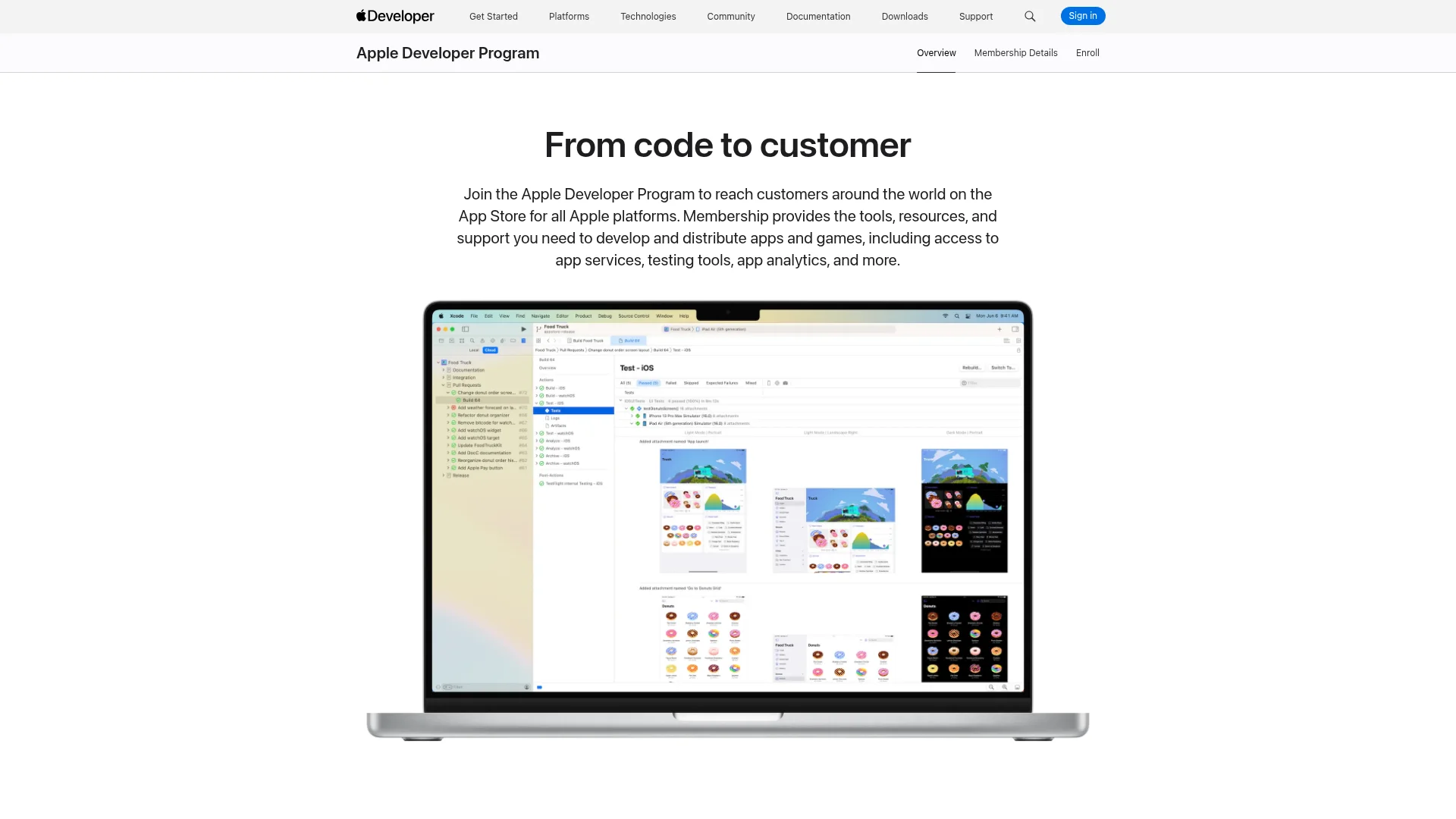
Apple Developer Program. Apple charges $99 per year for an individual or organization account. Organization accounts require a D-U-N-S number, which can take a few days to verify. You manage everything through App Store Connect and need a Mac with Xcode to build and sign iOS apps.
Google Play Developer account. Google charges a one-time $25 fee that covers your account for life. New personal accounts created after late 2023 must complete a closed test with at least 12 testers for 14 days before they can publish to production, so plan for that lead time.
You also need a few assets ready for both stores: an app name, a description, a privacy policy URL, an app icon, and screenshots sized for each device. Getting screenshot dimensions right the first time saves a rejection, so check our guide to App Store screenshot sizes before you export them.
How to Publish an App to the App Store
Publishing to the App Store happens inside App Store Connect, Apple's web dashboard for managing apps, builds, and metadata. Here is the full path from finished build to live listing.
Step 1: Register your App ID and create the listing
In App Store Connect, click the plus button to create a new app. Choose iOS, pick a unique bundle ID that matches your Xcode project, set your app name and primary language, and select an SKU. This creates the record that holds your metadata and builds.
Step 2: Upload your build
Archive your app in Xcode (Product, then Archive) and upload it through the Organizer window, or use a tool like Transporter. Within 15 to 30 minutes the build appears in App Store Connect under the TestFlight and app version sections, ready to attach to your listing.
Step 3: Fill in your store listing
Add your description, keywords, support URL, screenshots for each required device size, and an app preview video if you have one. Set your age rating by answering Apple's content questionnaire, choose a category, and confirm pricing or that the app is free.
Step 4: Complete privacy and compliance details
Fill out the App Privacy section that describes what data you collect and how you use it. This becomes the privacy "nutrition label" on your listing. Answer the export compliance and content rights questions, which are mandatory before submission.
Step 5: Submit for review
Attach the uploaded build to your version, then click Submit for Review. Apple's human reviewers test the app against the App Review Guidelines. Most reviews finish within 24 to 48 hours. Once approved, you can release immediately or schedule a date.
How to Publish Your App to Google Play
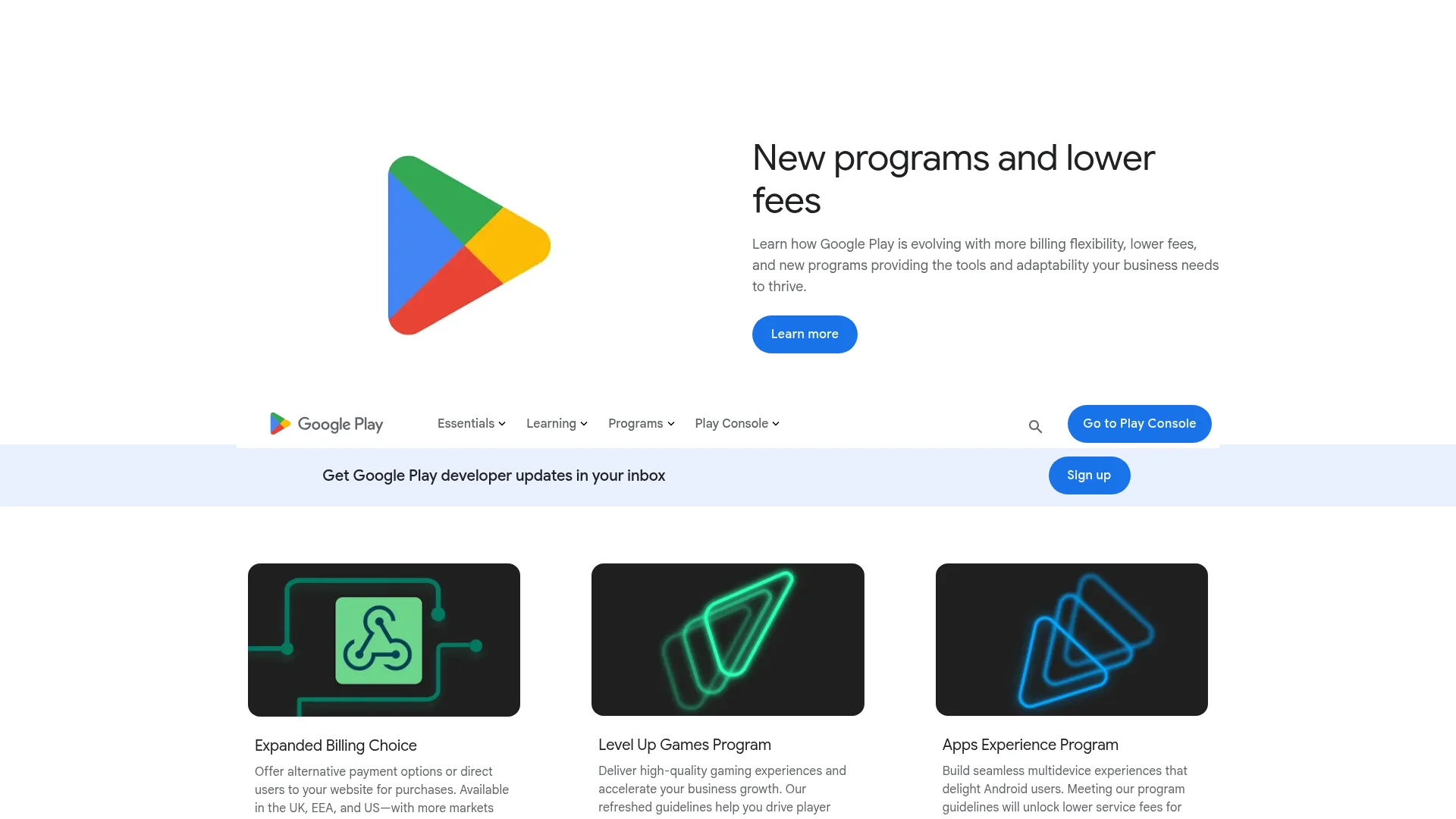
Google Play uses Google Play Console, a web dashboard similar in spirit to App Store Connect but with its own quirks. Android apps ship as an Android App Bundle (AAB) rather than an APK for production.
Step 1: Create your app in Play Console
In Google Play Console, click Create app, set the name, default language, and whether it is an app or a game, free or paid. Accept the developer program policies and the US export laws declaration to continue.
Step 2: Set up your store listing
Add a short description, full description, app icon, feature graphic, and screenshots for phone and tablet. Choose a category, add contact details, and link your privacy policy. The feature graphic is required even if you skip a promo video.
Step 3: Complete the policy and content forms
Google requires several declarations before you can publish: the content rating questionnaire, target audience, data safety form, ads declaration, and app access instructions if parts of your app are gated behind a login. Skipping any of these blocks the release.
Step 4: Upload your signed App Bundle
Go to the Production track (or a testing track first), create a release, and upload your AAB. Let Google Play handle app signing, which is the default and recommended option. Add release notes describing what is in the build.
Step 5: Roll out to production
Review the release summary, resolve any warnings, and click Roll out to production. If your account requires the 12-tester closed test first, complete that, then apply for production access. Approval often lands within a few hours, though it can take up to a couple of days.
App Store vs Google Play: Key Differences
The two stores look similar from a distance but differ in cost, build format, and how strict review is. Knowing these differences up front prevents surprises.
Factor | Apple App Store | Google Play |
|---|---|---|
Account cost | $99 per year | $25 one-time |
Build format | IPA (via Xcode) | Android App Bundle (AAB) |
Build tooling | Requires a Mac with Xcode | Any OS with Android tooling |
Review type | Human review, stricter | Mostly automated, faster |
Typical review time | 24 to 48 hours | A few hours to 2 days |
First-publish hurdle | D-U-N-S for org accounts | 12-tester closed test (new accounts) |
The practical takeaway: Apple costs more annually and reviews more strictly, while Google is cheaper but front-loads a testing requirement for new accounts. Budget time for both, not just the upload.
Why Apps Get Rejected and How to Avoid It
Rejections are common, especially on the first submission to Apple. Most fall into a handful of predictable buckets that are easy to fix once you know them.
Crashes and bugs. Reviewers will reject an app that crashes on launch or has broken core features. Test on a real device, not just the simulator.
Incomplete metadata. Missing screenshots, placeholder text, or a broken privacy policy URL get flagged immediately on both stores.
Privacy and data issues. An inaccurate App Privacy label or Data safety form is one of the most common rejection reasons. Declare exactly what you collect.
Sign-in walls without a demo account. If your app requires login, provide working test credentials in the review notes or it will be rejected for being inaccessible.
Misleading or thin functionality. Apple in particular rejects apps that feel like a repackaged website or offer little native value.
If Apple rejects your app, do not panic. You can reply in Resolution Center, fix the issue, and resubmit. For a deeper walkthrough, read our guide on how to appeal an App Store rejection.
Publish to Both Stores at Once With CatDoes
Here is the gap most guides ignore: doing all of the above twice. Two developer accounts, two build pipelines, a Mac for Xcode, two listings to keep in sync, and two review queues to babysit. For a solo founder or small team, that is days of overhead before a single user installs your app.
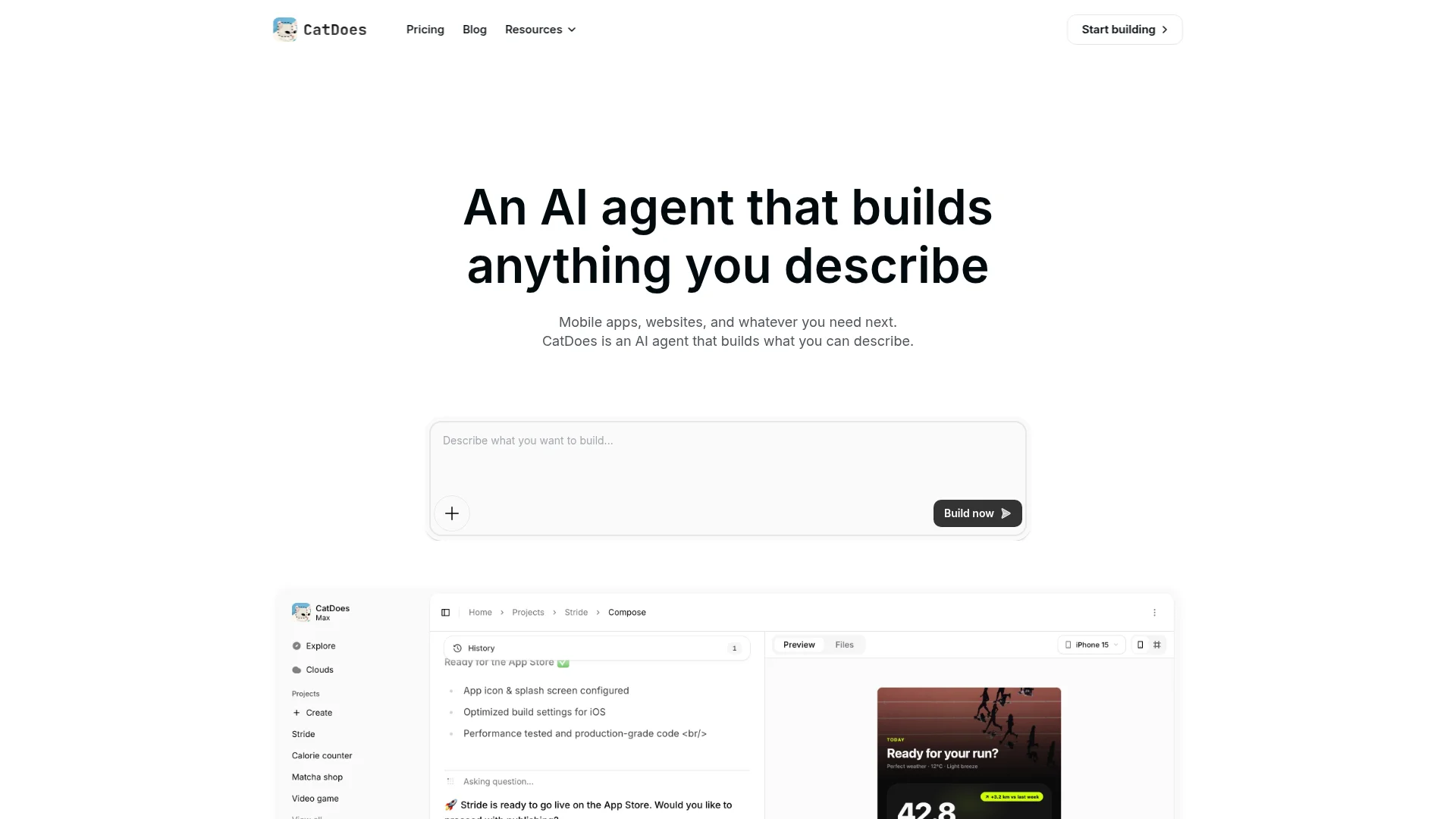
CatDoes collapses that into one workflow. You describe the app you want, the agent builds it, and it deploys to the App Store, Google Play, and the web. There is no separate Xcode setup, no juggling two consoles, and no manual rebuild for each platform. The same project ships everywhere, and updates redeploy to both stores together.
That means the differentiation is not just convenience. It is reach. You publish once and land on both the App Store and Google Play, instead of choosing one platform because the second one felt like too much work.
Frequently Asked Questions
How much does it cost to publish an app to the App Store and Google Play?
Apple charges $99 per year for the Apple Developer Program. Google charges a one-time $25 fee for a Play Developer account. So your first year to be on both stores is about $124 in account fees, not counting build or design costs.
How long does app store review take?
Apple's App Store review typically takes 24 to 48 hours. Google Play review is usually faster, often a few hours, though new accounts and sensitive app types can take up to a few days.
Do I need a Mac to publish to the App Store?
Traditionally yes, because Xcode only runs on macOS and is needed to build and sign iOS apps. Cloud build services and platforms like CatDoes remove that requirement by building and deploying iOS apps for you.
Can I publish the same app to both stores at the same time?
Yes. You maintain separate listings, but you can submit to both around the same time. Tools that deploy to both stores from one project, like CatDoes, let you ship to the App Store and Google Play together instead of managing each pipeline by hand.
What is the difference between an APK and an AAB?
An APK is the installable Android package. An Android App Bundle (AAB) is the publishing format Google Play now requires for new apps; Google generates optimized APKs from it for each device, which keeps download sizes smaller.
Ship to Both Stores Without Doing It Twice
Publishing an app to the App Store and Google Play is a process of accounts, builds, listings, and review, run once for Apple and once for Google. Get your developer accounts set up early, prepare your assets and privacy declarations carefully, and test on real devices to avoid the common rejections. If you would rather not run two pipelines, build your app with CatDoes and deploy it to the App Store, Google Play, and the web from one place. For platform-specific depth, see our detailed guides on how to submit an app to the App Store and how to publish an app on Google Play.
Nafis Amiri
Co-Founder of CatDoes