Blog
Tutorials
How to Submit App to App Store A Founder's Guide
Learn how to submit app to App Store with our definitive guide. From pre-submission checks to post-launch strategy, we cover everything you need.

Nafis Amiri
Co-Founder of CatDoes
Jan 3, 2026
How to Submit App to App Store A Founder's Guide
Before you can even think about hitting that "Submit for Review" button, there's some critical groundwork you have to lay. Getting your app into the Apple App Store means first getting all your digital paperwork in order. This isn't just a suggestion; these are the non-negotiable steps that form the handshake between your app and Apple's entire ecosystem.
Mastering the Pre-Submission Checklist
Let’s be honest, launch day is what everyone dreams about. But if you rush through the pre-submission phase, you’ll be met with frustrating delays and rejections before your app even gets a first look from a real person. This is hands-down the number one reason I see founders get stuck.
A great app idea isn't enough. Procedural correctness is just as important in Apple's world. Think about it: in 2024, over 450,000 new apps were submitted, but less than 60% made it through on their first try. That statistic alone should tell you how seriously you need to take this initial setup.
Before diving into the technical bits, here’s a quick-reference table of everything you’ll need to have ready.
Essential App Store Submission Prerequisites
This table breaks down the core requirements. Consider this your go-to checklist to make sure you have everything in place.
Requirement | What It Is | Why It's Important |
|---|---|---|
Apple Developer Program | A paid membership that gives you access to Apple's developer tools. | This is your entry ticket. Without it, you can't access App Store Connect, TestFlight, or any distribution tools. |
Certificates & Profiles | Digital credentials that verify your identity and link your app to your developer account. | These are like your app's passport. They ensure secure communication with Apple's servers and allow installation on user devices. |
A Finalized App Binary | The compiled, ready-to-upload version of your app's code. | This is the actual package that gets submitted. It must be stable, bug-free, and complete. |
A Public Privacy Policy | A publicly accessible URL detailing how your app collects, uses, and stores user data. | Apple is extremely strict about user privacy. A missing or vague policy is a guaranteed rejection. |
Getting these four things right from the start will save you countless hours of back-and-forth with the review team.
Laying the Groundwork for Submission
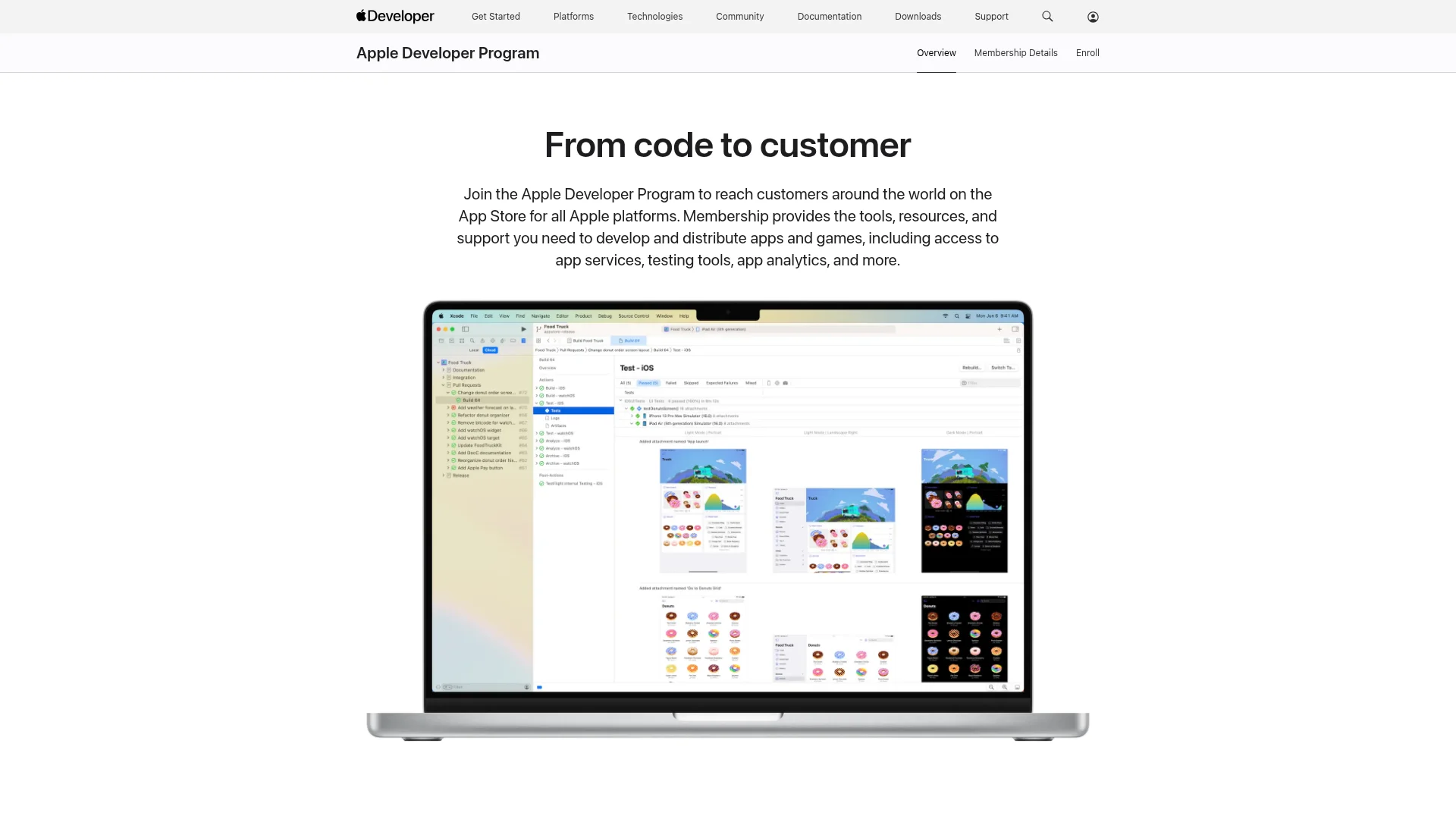
Your first real step is enrolling in the Apple Developer Program. It costs $99 per year, and it unlocks the entire suite of tools you need to publish and manage your app.
Once you're in, the focus immediately shifts to the technical setup: creating the certificates, identifiers, and provisioning profiles. This is where a lot of non-technical founders hit their first major wall. Think of these as your app's official ID; without them, it can't be trusted by Apple's services or installed on anyone's iPhone.
"The certificates and provisioning profiles are the bane of many new developers' existence. Get this part right, and you've cleared one of the biggest initial hurdles in the entire submission process."
This flow chart breaks down the core sequence from joining the program to generating your credentials, all leading up to a finalized app binary ready for upload.

Each of these steps builds on the last, giving you a clear path from a brand-new account to a package you can actually submit.
Finalizing Your App Binary
The app binary is the compiled version of your code that you'll upload to App Store Connect. Before you even think about creating this final build, you need to test, test, and test again. Apple’s review team has a very low tolerance for bugs, crashes, and instability.
Make sure your app feels complete. All features should be working, all placeholder text and images should be gone, and you absolutely must have a privacy policy URL ready to go. This policy needs to be on a public website and clearly explain how you handle user data. A missing or poorly written policy is one of the most common and easily avoidable reasons for rejection.
If you want to do one last quality check, our guide on how to test an app on your iPhone walks through the best practices for that final polish.
Navigating App Store Connect Like a Pro
Once you’ve wrestled with the technical prep, you’ll spend the rest of your time in App Store Connect. This is Apple's web portal, and it's your command center for everything, from your first submission to every update that follows.
Don't just think of it as a long form to fill out. This is your app's storefront. Every field is a chance to convince someone that your app is worth their time and a tap of the "Get" button. Getting it right here is non-negotiable. A 2024 analysis found that apps with sharp, keyword-rich metadata see up to a 35% boost in App Store search visibility. This is where the real work of getting noticed begins.

Creating Your App Record
First things first: you need to create a new app record inside App Store Connect. This is the digital container that will hold every build you upload and all the marketing info you provide.
You’ll be asked for a few key details that can't be changed later, so double-check them.
App Name: The name everyone will see on the App Store. It has to be unique and can be up to 30 characters.
Primary Language: The main language your app's information will be in.
Bundle ID: This must be an exact match to the unique ID you created back in the Apple Developer portal. No typos allowed!
SKU: This is your own private ID for the app. It's not visible to users but helps you track things on your end.
With that done, you're ready to start building out your product page.
Crafting Metadata That Actually Converts
This is where you put on your marketing hat. Your app's name, subtitle, and description are your best tools for grabbing attention. Don't treat this as a last-minute task; it’s just as important as the code itself.
Your app name needs to be catchy and ideally give a hint about what it does. The subtitle is your secret weapon, a short phrase up to 30 characters that sits right under your app's name. It's the perfect spot for your main selling point. A meditation app, for instance, might use "Find Your Calm in Minutes." It’s short, punchy, and promises a clear benefit.
The description is where you can really sell the story. Hook them in the first couple of sentences with your app’s biggest benefits. Then, break down the features using bullet points to keep it scannable. Weave in keywords naturally by thinking about what a potential user would actually type into the search bar to find an app like yours.
Remember, you’re not writing this for Apple’s reviewers. You’re writing it for your future customers. Clear, benefit-focused language always wins over a list of technical specs.
Setting Your Price and Availability
Next up, how are you going to make money? App Store Connect has a simple interface for setting your price and deciding where in the world your app will be available.
You can set your app to be free or pick from a list of price tiers. Apple handles all the currency conversions, which is a huge help. You also get to choose which countries to launch in. It's tempting to go global right away, but a phased rollout can be a much smarter move.
Launching in just a few key countries first lets you gather feedback, fix bugs, and refine your marketing without being overwhelmed. It's a great way to iterate quickly with a smaller, more manageable group of users before you expand.
Getting Real About Privacy
Finally, you have to be completely upfront about the data you collect. Apple is incredibly serious about user privacy, and this section is mandatory. You’ll need to fill out the "App Privacy" questionnaire, which asks for specifics on every piece of data your app or any third-party tool you use collects.
Be honest and thorough. This information becomes the privacy "nutrition label" on your App Store page that users see before they download. Getting this wrong is a classic, and easily avoidable, reason for rejection. If you use SDKs for things like analytics or ads, you’re responsible for declaring the data they collect, too. This is a critical step to show both Apple and your users that you’re an honest, trustworthy developer.
Designing an App Store Product Page That Actually Converts
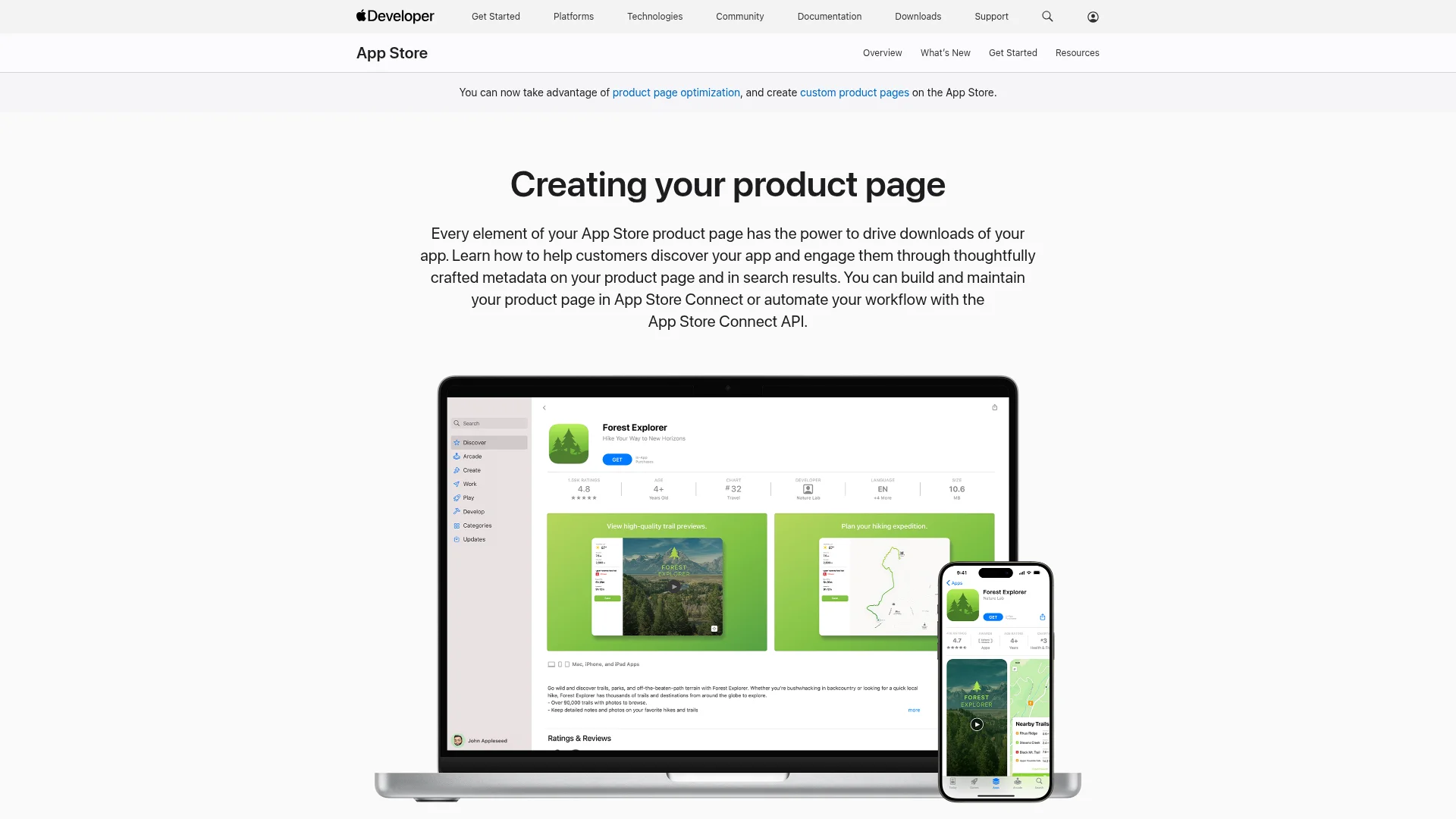
Your product page is your digital storefront. It’s the first real interaction a potential user has with your app, and you’ve got maybe three seconds to make them care. The decision to tap "Get" happens right here, and your visuals are doing all the selling.
Don't just take my word for it. We've seen well-designed product pages with sharp visuals boost conversion rates by over 20%. That’s a real, measurable impact. The effort you put into your screenshots and app previews isn't just about looking good; it's about turning a casual browser into an active user.
Crafting Screenshots That Tell a Story
Think of your screenshots as a comic strip, not a photo album. You have up to ten slots to guide a user on a journey, showing them exactly what your app does and why they need it. Don't just dump random screens in there; tell a cohesive story.
The first two screenshots are everything. They need to instantly communicate your app's main purpose. Use bold, clear text overlays to call out the most important features. If you have a fitness app, your first shot should be the main workout screen with a caption like, "Track Your Progress in Real-Time."
Here's a flow that works wonders:
Screenshots 1-2: Nail the core value proposition. What’s the number one problem you solve?
Screenshots 3-5: Show off the key features. How, exactly, do you solve that problem?
Screenshots 6-8: Highlight what makes you different. Why should they choose you over the competition?
Screenshots 9-10: Add social proof, customization, or advanced features to seal the deal.
And please, get the technical details right. Apple is incredibly strict about screenshot dimensions for every single iPhone and iPad model. If you fail to provide perfectly sized assets for each device, you're either getting rejected or your app will look broken on the store.
The Power of App Previews
An app preview is a short video up to 30 seconds that shows your app in action. Yes, they’re optional, but they're also a massive advantage. People want to see how an app feels before they download it. A well-made video preview builds trust and can give your download numbers a serious lift.
Your app preview is your elevator pitch. It has to be engaging from the very first second and focus on the most exciting or useful parts of your app. Show, don't just tell.
Keep it short, sweet, and packed with action. Use actual screen recordings, not slick animations that don't represent the real experience. You're trying to give an authentic peek behind the curtain, and that’s what builds the excitement that static images can't match.
Design Principles for Standout Visuals
Great visuals are more than just pretty pictures; they follow solid design principles that make them look professional and trustworthy. If you need to brush up on the fundamentals, taking a look at app design best practices is a great place to start. It’ll give you the foundation you need to make your product page shine.
As you create your assets, keep these points in mind:
Clarity is King: Use large, easy-to-read fonts for text overlays. Make sure there’s high contrast between your text and the background.
Stay on Brand: Your app’s color palette and style should be consistent across all your visuals. It creates a cohesive, professional look.
Write Benefit-Driven Captions: Instead of a boring label like "Search Screen," try "Find What You Need, Instantly." Always focus on what the user gets out of it.
Localize Your Assets: If you’re launching in different countries, your visuals need to speak the local language. For global reach, using a professional marketing document translation service can make sure your captions and descriptions connect with users everywhere.
Investing the time to create a stunning, informative product page isn't just a box to check; it's one of the most important marketing moves you'll make. Your visuals are the first promise you make to your users. Make it a good one.
Uploading Your Build and Finalizing Submission
You've polished the metadata and your visuals are locked in. Now comes the final technical hurdle before your app lands in Apple's review queue: uploading the actual app binary. This is the compiled code that users will eventually download, and getting this part right is absolutely critical. A simple mistake here can send you right back to the beginning.
The path from a finished app on your machine to Apple's servers isn't just one click. It’s less about marketing flair and all about technical precision. You'll need to choose an upload method and then tick off several final legal and compliance boxes inside App Store Connect.
Choosing Your Upload Method
To get your app build, almost always an .ipa file, over to Apple, you have two main tools at your disposal. They both get the job done, but they’re built for slightly different workflows.
Xcode: This is the default path for most developers already living in Apple's ecosystem. You can archive your app and upload it directly to App Store Connect without ever leaving the IDE. It’s seamless and often the most direct route if you’re the one writing the code.
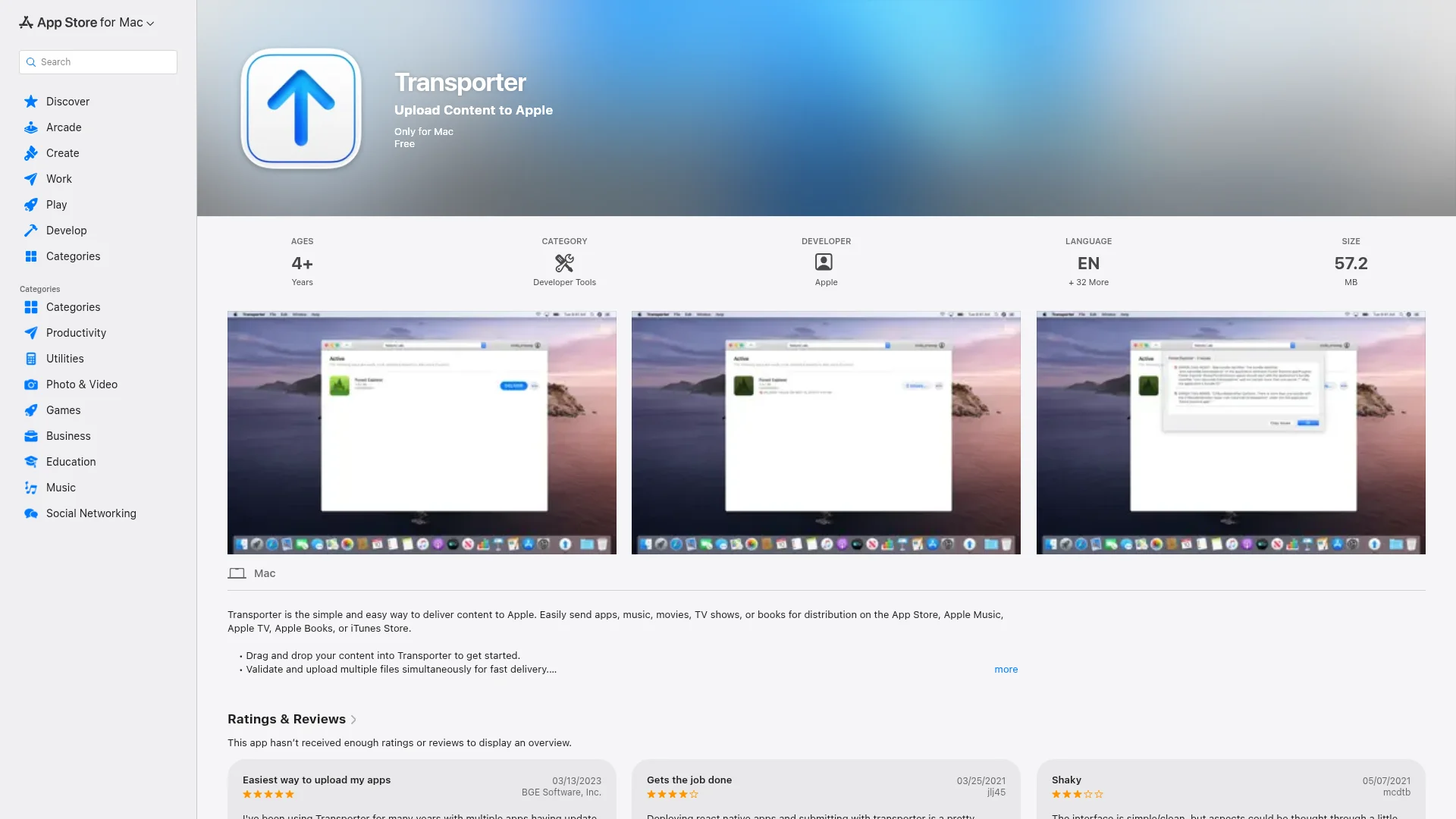
Transporter: For everyone else, Apple created the Transporter app. This is a simple, standalone macOS tool with a drag-and-drop interface. Just pull in your
.ipafile, and Transporter handles the validation and upload for you. It's a lifesaver for founders or project managers who get the final build from a developer and just need to handle the submission.
No matter which tool you use, once the upload finishes, the build starts processing in App Store Connect. This can take anywhere from a few minutes to over an hour while Apple runs its initial automated checks on your binary.
Completing Final Submission Checks
After your build has successfully processed, it will show up in your app's record, usually under the "TestFlight" tab. The next move is to attach this specific build to your App Store version and answer the last few questionnaires.
Don't just fly through these. They are legally binding declarations about what your app does and what's inside it.
"The final compliance questions are Apple’s way of ensuring you’ve done your due diligence. Rushing through them without understanding the implications is a common and avoidable mistake that can lead to rejection or even legal issues down the line."
You’ll have to provide clear answers in a few key areas:
Export Compliance: You must declare if your app uses cryptography. Most apps do (for things like standard HTTPS connections), but you'll almost certainly be exempt from needing U.S. government registration. Answering this incorrectly is a classic way to cause a huge delay.
Content Rights: Here, you confirm you have the legal right to use all third-party content in your app. This means images, music, fonts, and anything you didn’t create yourself.
Advertising Identifier (IDFA): If your app uses the IDFA to track users for ads, you have to declare it. With recent iOS updates, you also must have the AppTrackingTransparency framework implemented to get user consent first.
Hitting the Submit Button
Once you've attached your build and completed all the declarations, the "Add for Review" button will finally light up. After clicking it, you get one last chance to look over everything: the description, the screenshots, the privacy labels, and the pricing.
When you're positive every detail is perfect, you can hit that final "Submit to App Review" button. Your app's status will flip to "Waiting for Review," and it’s officially in the queue. At this point, you can't make any more changes to the metadata or build unless you pull the submission entirely.
Congratulations, the hardest parts are behind you. Now, it's all about patience as you wait for the verdict from Apple's review team.
Surviving the Review Process and Handling Rejection
You've hit the submit button. Your app’s status flips to “Waiting for Review.” This is a huge moment, but it's also the start of a pretty nerve-wracking wait. Your app is now in the queue for Apple's review team, who are tasked with making sure every app on the store meets their high bar for quality, security, and user experience.
How long does it take? While Apple is pretty quick, often completing reviews within 24 to 48 hours, your very first submission might take a little longer. A few things can affect the timeline: how complex your app is, the time of year (things get busy before holidays), and whether you've left clear, helpful notes for the reviewer.

Decoding the Most Common Rejection Reasons
Getting a rejection email stings, but it’s a totally normal part of the process. In fact, many of the most successful apps on the store were rejected at least once. The trick is to see it as feedback, not failure. Understand what they're saying, make the right changes, and resubmit with confidence.
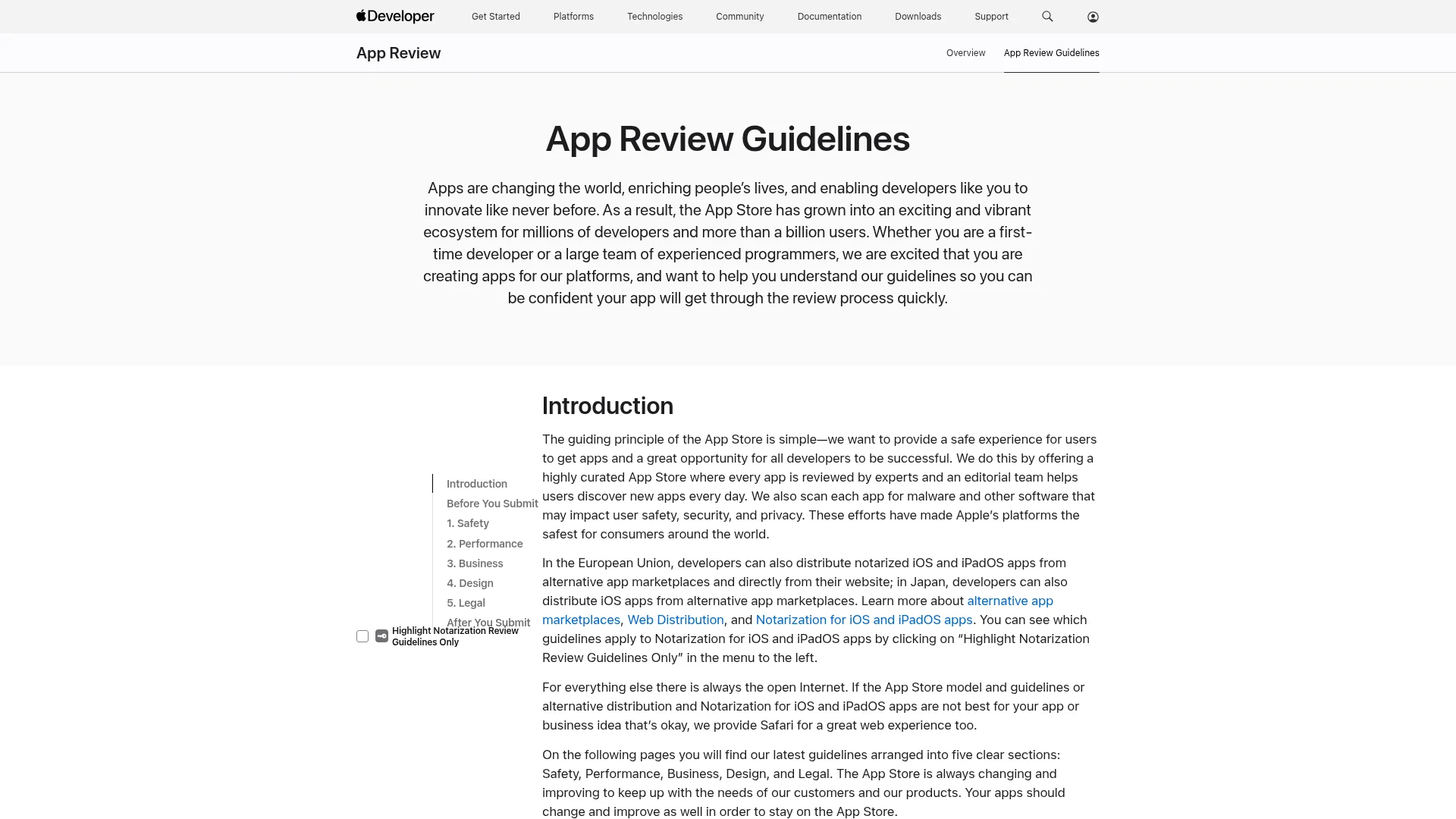
Apple will always point to a specific guideline your app didn't meet. Some of these pop up way more than others. Knowing them ahead of time gives you a massive advantage when you're preparing to submit your app to the App Store.
"A rejection isn't a final verdict; it's a request for clarification or improvement. Treat it as a collaborative part of the process to get your app market-ready, not as a failure."
Let’s get into the most common hurdles I've seen developers face and, more importantly, how to clear them.
Common App Store Rejections and How to Fix Them
Getting rejected is common, but it's rarely a dead end. Most rejections fall into a few predictable categories. This table breaks down the frequent issues I see and provides actionable solutions to get your app back on track for approval.
Rejection Reason (Guideline) | What It Means | How to Fix It |
|---|---|---|
Guideline 2.1 Performance App Completeness | Your app feels unfinished. It's buggy, crashes, or has links that go nowhere. This is the catch-all for apps that just aren't ready for prime time. | Test your app relentlessly on multiple devices. Kill every crash and make sure every single button and link works. If your app has complex features, provide a demo video. |
Guideline 4.3 Spam | Your app looks like a copy of another app or seems like it was auto-generated with very little unique value. Apple is cracking down on low-effort apps. | Figure out what makes your app unique and lean into it. Highlight original content, features, and design in your description. If you have several similar apps, think about merging them into one container app. |
Guideline 5.1.1 Data Collection and Storage | You either didn't properly disclose how your app collects user data, or you're missing a privacy policy altogether. | Your App Privacy "nutrition label" needs to be 100% accurate. Double-check that your privacy policy URL is live and clearly explains all your data collection practices, especially from any third-party SDKs. |
Guideline 1.2 User-Generated Content | Your app allows users to post content but doesn't have good enough moderation tools, like a way to report offensive material or block other users. | You need to implement a solid content moderation system. This must include an easy-to-find report button, a feature to block abusive users, and a clear policy explaining what's not allowed. |
By addressing these common pitfalls before you even submit, you significantly increase your chances of a smooth, first-try approval.
Communicating Effectively with Apple's Resolution Center
When your app gets rejected, you’ll get a message in the Resolution Center inside App Store Connect. This is your direct line to the review team. How you handle this conversation can make a huge difference.
Here’s my advice for when you get that rejection notice:
Stay Professional and Respectful: Your tone really matters. Don't get defensive or frustrated. Treat it like a problem-solving session with a colleague. There’s a human on the other end.
Ask for Clarification: If the rejection reason feels vague, it's perfectly okay to politely ask for more specific examples or details. "Could you clarify which part of the app violated this guideline?" is a great way to start.
Provide Detailed Responses: When you resubmit, don't just upload a new build. Write a clear, concise note explaining the changes you made. Reference the specific guideline and describe exactly how the new version fixes the problem.
And what if you genuinely believe the reviewer misunderstood a feature? You have the right to appeal the decision. An appeal kicks your app up to a review board for a second opinion. Use this option carefully and only when you have a strong, well-reasoned case that the initial rejection was a mistake.
Your Post-Launch Strategy for Long-Term Success
Getting that "Ready for Sale" email from Apple is an incredible feeling, but it’s not the finish line. Far from it. That notification is actually the starting gun for the next, arguably more important, phase of your app's life. What you do right after launch separates a flash-in-the-pan from a sustainable business.
Your job now pivots from building and submitting to listening, measuring, and improving. This is where you find out what people really think, what's broken, and where you need to go next. So many developers drop the ball here, and it undermines all the hard work that got them to this point.
Dive into Your App Analytics
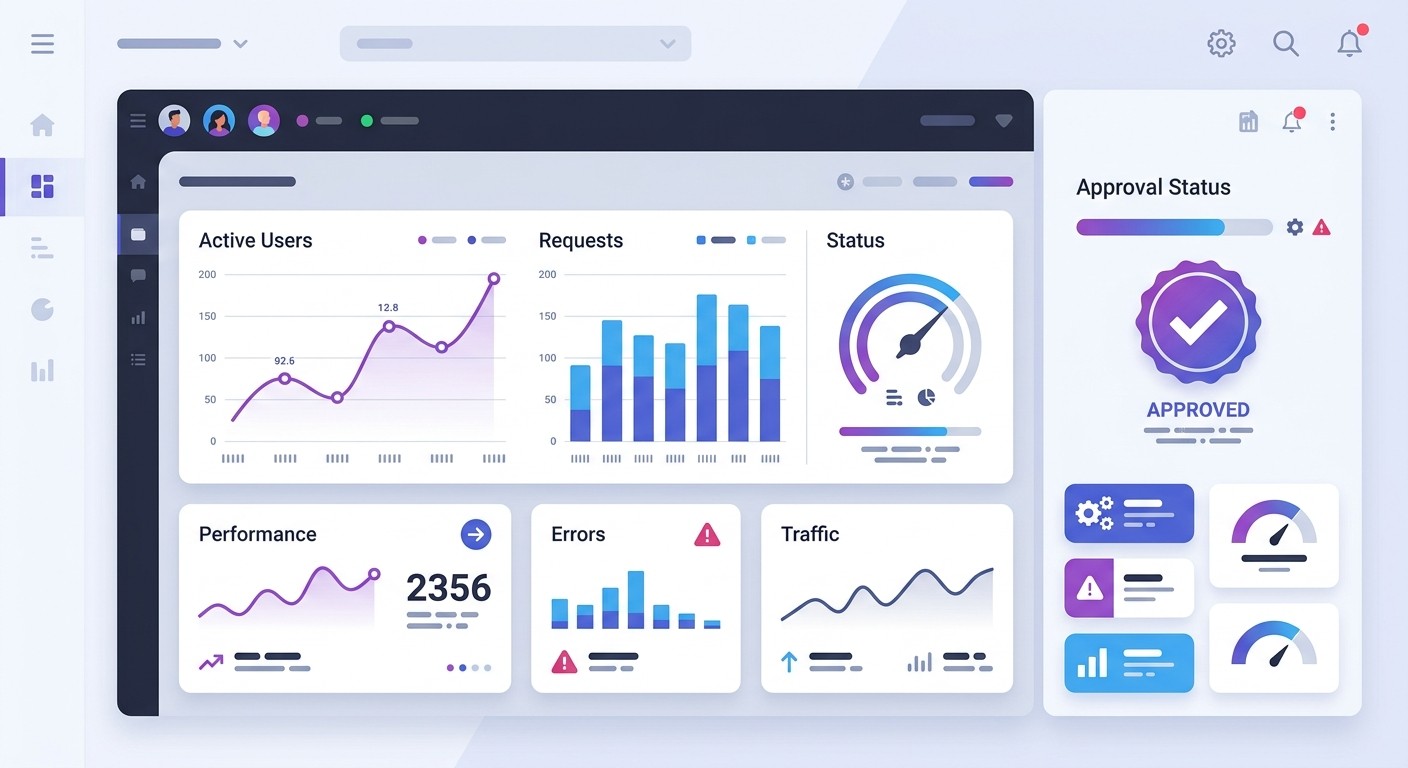
App Store Connect isn't just a gatekeeper; it’s packed with powerful analytics that tell you the real story of your launch. As soon as you're live, App Analytics becomes your dashboard for what's actually happening out in the wild. This isn't about vanity metrics; it's about finding actionable data.
Right away, you should be tracking a few key numbers:
Impressions: How many times your app's icon showed up in search results or features.
Product Page Views: The number of people who actually tapped through to learn more.
Downloads: Your total new installs.
Sales: The revenue coming from app sales or in-app purchases.
Crash Reports: Exactly how many times the app has crashed on a user's device.
Look at the conversion rate from impressions to downloads. If it's low, it could mean your icon isn't grabbing attention or your app name isn't clear. If you're getting page views but few downloads, your screenshots or description might need a rethink. The data doesn't lie.
Master the Art of User Feedback
Your ratings and reviews are the most direct channel you have to your users. They are an absolute goldmine of bug reports, feature ideas, and honest opinions. Ignoring them is like a shop owner ignoring customers who walk up to the counter.
Make a habit of responding to reviews, especially the negative ones. It shows you're listening and helps build a community around your app. When someone points out a bug, thank them and tell them you're on it. When they leave a glowing review, a quick "thanks so much!" can turn a happy customer into a vocal supporter.
Responding to user reviews can boost your app's rating by an average of 0.7 stars. It's a simple, high-impact habit that directly shapes how new users see your app and your dedication as a developer.
This feedback loop is what drives your app forward. It tells you what to build next and also improves your app's visibility, as the App Store algorithm tends to favor apps with higher ratings and active engagement. For a deeper dive into this crucial phase, check out our complete guide on how to launch an app and keep the momentum going.
Planning Your First App Update
You should already be thinking about your first update the moment you launch. It will almost certainly be one of two things: a quick bug-fix release or the first of your planned feature enhancements. Your first wave of users will inevitably find small issues you missed during testing.
Pushing a quick update to fix those early bugs shows you're responsive and committed to a quality experience. The good news is that submitting an update is way easier than the initial review. You'll just upload a new build in App Store Connect and write some "What's New" text; the rest of your store listing can usually stay the same.
Beyond the immediate fixes, use your analytics and user feedback to shape your roadmap. Are tons of people asking for the same feature? Is there a part of the app nobody is touching? This is the data that should guide your next moves, ensuring every update you ship adds real value and keeps people coming back.
Got Questions? We’ve Got Answers
If you're tackling the App Store submission for the first time, you're bound to have questions. It's a rite of passage. Here are some quick, straightforward answers to the things we hear most often from founders gearing up for launch.
How Long Does The App Store Review Process Usually Take?
Apple is surprisingly quick these days. Most app submissions get reviewed within 24 to 48 hours.
That said, your very first submission for a brand-new app can be a different story. It's not unheard of for it to take a bit longer, sometimes even up to a week. The timing really depends on how complex your app is, how clear your submission notes are, and just how many other developers are in the queue ahead of you.
Good news, though: once your app is live, subsequent updates are often reviewed much, much faster.
Can I Submit An App To The App Store For Free?
No, unfortunately, you can't submit an app for free. You have to be an active member of the Apple Developer Program, which costs $99 USD per year.
Think of this fee as your ticket to the show. It's a non-negotiable prerequisite that gives you access to App Store Connect, the portal where all the submission magic happens. It also lets you create the certificates and profiles your app needs to even exist.
What Is The Difference Between TestFlight And App Store Submission?
This is a big one. TestFlight and an official App Store submission are two completely different stages of your app's journey.
Think of TestFlight as a dress rehearsal and the App Store submission as opening night. One is for testing with a friendly audience, while the other is the official public launch.
Here’s how they break down:
TestFlight: This is Apple’s beta testing platform. It’s your chance to invite up to 10,000 external testers to kick the tires and find bugs before your app goes public. Builds submitted to TestFlight still go through a review, but it's generally a much lighter touch than the real thing.
App Store Submission: This is the final step. This is you telling Apple, "Okay, we're ready for the world." The app goes through a rigorous review process where Apple checks it against their strict guidelines for quality, safety, and content.
So, in short, you use TestFlight to iron out the kinks with a select group. You use the App Store submission to release your polished, finished product to everyone.
Feeling like the technical side of things, like certificates, builds, and compliance checks, is a bit much? You're not alone. The submission process can be a real headache, but it doesn’t have to stop you. CatDoes uses an automated build-and-release agent to handle the entire submission workflow for you. Turn your idea into a production-ready app and get it into the App Store without writing a single line of code.

Nafis Amiri
Co-Founder of CatDoes