Blog
Tutorials
Base44 & Lovable GitHub Sync: Move to CatDoes
Sync your Base44 or Lovable app to GitHub, import the repo into CatDoes, and keep building with two-way sync. Then ship it to the App Store and Google Play.

Nafis Amiri
Co-Founder of CatDoes

Base44 and Lovable are quick ways to get a web app running. The problems start when you want something they don't do. Usually that's a native iOS and Android app, which neither one builds. Sometimes you just want your code somewhere you control, with an AI agent that can keep working on it.
GitHub is how you move. Both builders can sync your project to a GitHub repo. CatDoes imports that repo, the AI agent reads all of your code, and you keep building from there, with two-way sync back to GitHub and a path to the App Store and Google Play.
This guide covers the whole move: connecting Base44 or Lovable to GitHub, importing the repo into CatDoes, working with sync and branches, and shipping the app. We make CatDoes, so we'll also be upfront about what doesn't come with you.
TL;DR: Connect your Base44 app (Builder plan or higher) or Lovable project (any plan) to GitHub. In CatDoes, click New Project, choose Import from GitHub, and pick the repo. Import is included from the Core plan up. Two-way sync, where the CatDoes agent commits and pushes back to GitHub, needs the Plus plan or above, and so does code export. Your code moves through GitHub, but your data and users stay in Base44's or Lovable's backend until you move them.
Table of Contents
How Moving to CatDoes Through GitHub Works
Step 1: Connect Base44 or Lovable to GitHub
Step 2: Import the Repo Into CatDoes
Step 3: Keep Building With Two-Way GitHub Sync
Version Control: Base44 History vs CatDoes Checkpoints
Step 4: Turn It Into a Native App and Ship It
Fixing Common Sync and Import Problems
Frequently Asked Questions
How Moving to CatDoes Through GitHub Works
GitHub sits in the middle. Base44 and Lovable push your code out to a repo, and CatDoes pulls it in. The move only goes in that direction because Lovable can't import an existing repo, and Base44's GitHub docs don't describe a way to do it either.
Here's how the three tools compare on GitHub, based on each one's documentation.
Feature | Base44 | Lovable | CatDoes |
|---|---|---|---|
Sync your project to GitHub | Yes, two-way | Yes, two-way | Yes, two-way |
Plan needed | Builder or higher | All plans (github.com) | Core to import, Plus for sync and export |
Import an existing repo | Not in Base44's docs | No, export only | Yes |
Branches | Only main syncs | One branch at a time | Switch or create branches from the dashboard |
Native iOS and Android apps | No, web apps | No, web apps | Yes, React Native with Expo |
The short version: Base44 or Lovable gets your code onto GitHub, and CatDoes is where you keep building it.
Step 1: Connect Base44 or Lovable to GitHub
If your code is already on GitHub, skip to Step 2. If it isn't, setup takes a few minutes in either builder.
How to Connect Base44 to GitHub
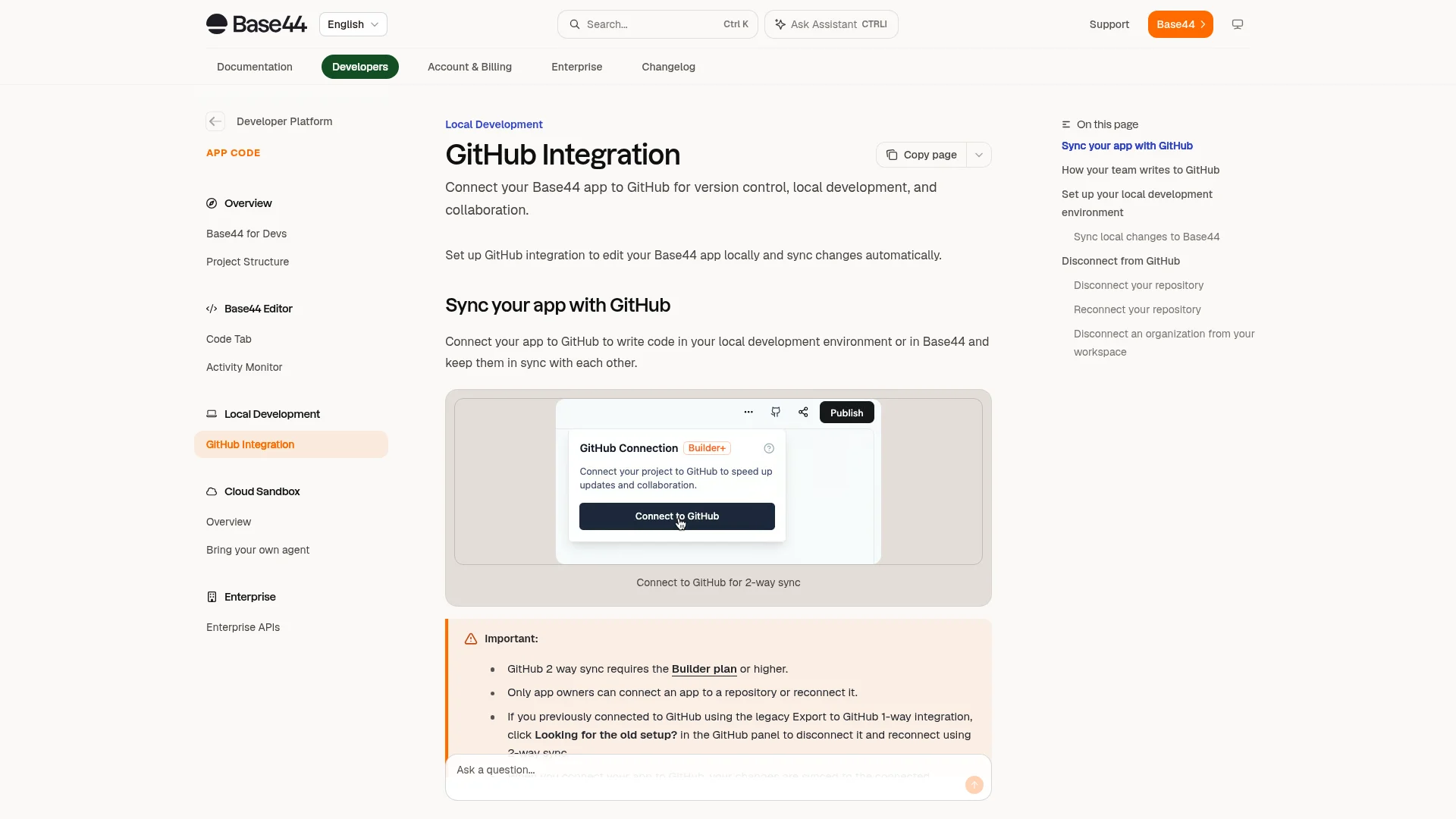
Base44 calls this GitHub 2-way sync. You need the Builder plan or higher, and only the app's owner can connect it.
Open your app in the Base44 editor and click Dashboard.
Click the GitHub icon at the top right, then click Connect to GitHub.
Click Connect GitHub, then Authorize Base44 Builder.
Pick the GitHub account or organization, choose which repositories Base44 can access, and click Install.
Name the new repository and click Create Repository.
From then on, Base44 commits every change to the repo automatically. There's no manual push button. Keep one limit in mind for later: Base44 only syncs a branch named main, and repos that use master aren't supported.
How to Connect Lovable to GitHub

Lovable's GitHub sync works on all Lovable plans. A workspace owner or admin adds the GitHub connection once, and then each project connects to it.
Go to Workspace settings → Git → GitHub and click Add connection.
Click Add account, choose the account or organization and which repositories to allow, then click Install & Authorize.
Open your project and go to Project settings → Git → GitHub.
Click Connect next to the workspace connection.
Lovable creates a new private repository and starts two-way sync. Two things to know before you move on:
It's export only. Lovable always creates a new repo. You can't point it at code you already have.
Reconnecting makes another new repo. If you disconnect the project and connect it again later, Lovable won't relink the old repo.
Paid Lovable plans also have a one-time Download codebase option, but for this move you want the synced repo, since that's what CatDoes imports.
Step 2: Import the Repo Into CatDoes

With your code on GitHub, the import takes a couple of minutes. Import from GitHub is included on the Core plan and above.
Go to app.catdoes.com and click New Project.
Click Import from GitHub.
On GitHub, authorize CatDoes and choose which repositories it can access. Include the repo Base44 or Lovable created.
Back in CatDoes, select the repository and the branch to import. Your default branch is selected for you.
Name the project (it's filled in from the repo name) and choose Public or Private.
Click Import.
CatDoes pulls in the code and opens your new project, linked to the repo. The agent can now read every file, including screens that sit behind a login.
Still using Base44 or Lovable on that repo? Give CatDoes its own branch before your first prompt. Step 3 shows how.
Import From GitHub or Paste Your URL?
CatDoes has a second way in for Base44 and Lovable apps: paste your live URL. CatDoes then pulls the design, colors, logo, fonts, and page content from the site and builds from that. It's quick, and it works well for public sites.
The limit is that a URL scan only sees what a logged-out visitor sees. If your app has a dashboard, account pages, or an admin panel, import the repo instead so the agent works from your real code.
Step 3: Keep Building With Two-Way GitHub Sync
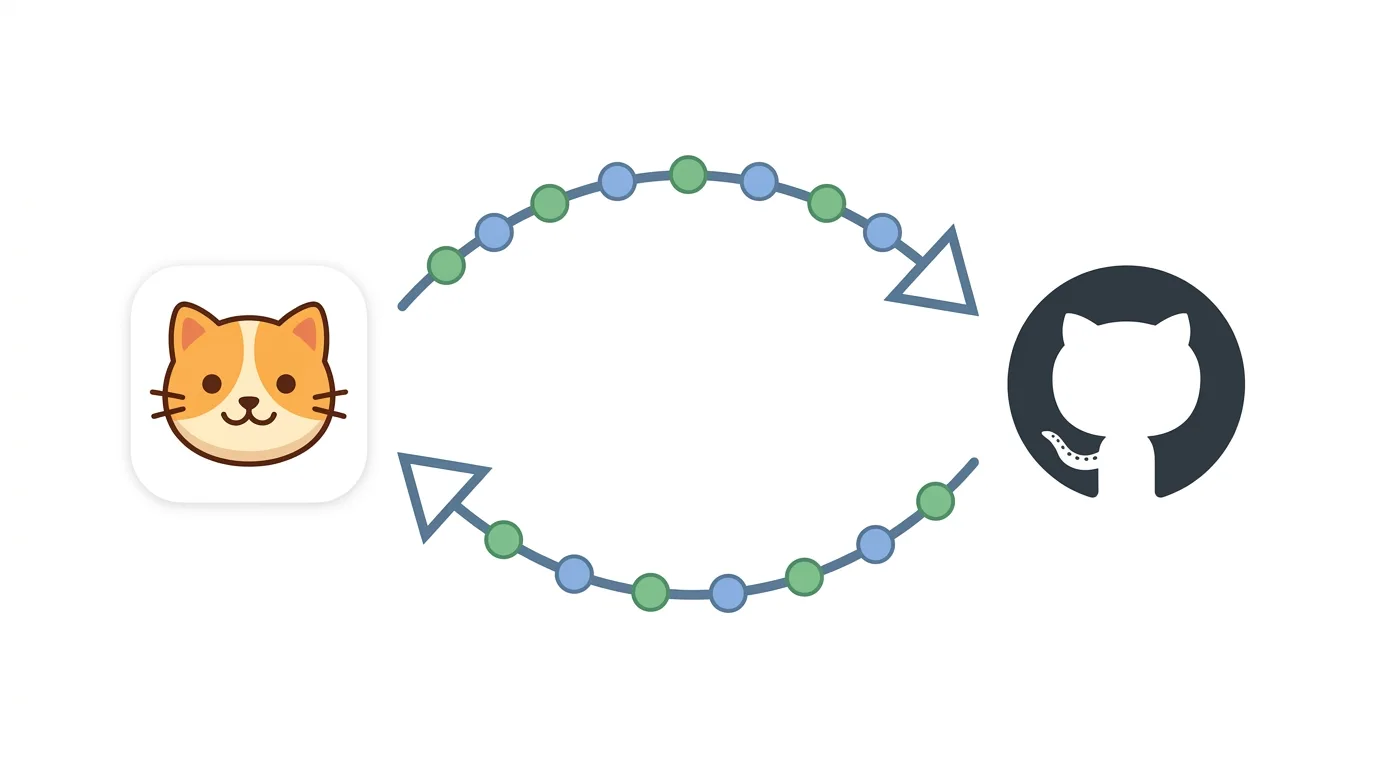
On the Plus plan and above, your repo stays the source of truth while you build in CatDoes. When you ask for a change, the agent reads the code from GitHub, makes the edit, commits it with a descriptive message, and pushes it to your branch.
It works the other way too. Before it edits, the agent can pull the latest changes from GitHub, so a fix a developer pushed doesn't get lost. It can handle merge conflicts, and it can reset to the GitHub version if the two drift too far apart.
If you started a CatDoes project from scratch instead of importing, you can still add sync. Click Connect GitHub on the project dashboard, pick a repo and branch, and click Link Repository.
Give CatDoes Its Own Branch

If you're still using Base44 or Lovable on the same repo, this is the one habit I'd insist on. Base44 syncs only main, and Lovable syncs one branch, usually main. If CatDoes pushes to main as well, two tools are writing to the same branch and will overwrite each other. Do this right after the import, before your first prompt.
In CatDoes, open the branch dropdown and click Create New Branch.
Name it something like
catdoesand create it frommain.Click Create. The branch shows up on GitHub right away.
If the new branch isn't already selected, click Change next to the repo, pick it, and click Update.
Your Base44 or Lovable project keeps working on main and never sees the CatDoes changes. Once you've fully moved, disconnect the old builder from GitHub first. Then merge your branch into main, or click Change in CatDoes and switch to main.
Edit the Code Yourself
You don't have to do everything through the agent. Clone the repo, open it in VS Code or Cursor, and push to the branch CatDoes works on. The agent can pull your commit before it makes its next change.
It's also worth reading the agent's commits on GitHub now and then. The diff shows exactly what changed and why. To stop syncing, click Disconnect on the GitHub Integration card. That removes the link and leaves your repo on GitHub untouched.
Version Control: Base44 History vs CatDoes Checkpoints
Does Base44 have version control? Yes, in two layers. Base44 has built-in Version History, and connecting GitHub adds Git on top, so every change becomes a commit you can inspect and revert.
The catch is timing. Once GitHub is connected, Version History can only restore versions that exist in the repo. Anything from before the connection was never stored in GitHub, and Base44 warns that restoring those versions causes errors. If there's an old version you might want back, restore it before you connect.
CatDoes also gives you two layers:
Checkpoints. Every new chat saves a snapshot of your whole project. If a later chat goes wrong, click History in the chat panel, pick the chat, and click Revert to this point.
Git history. With two-way sync on, each change the agent makes is a commit on your branch, just like Base44 after it connects to GitHub.
A tip that saves a lot of pain: start a new chat before you try anything risky. That gives you a save point right before the change, and rolling back is often faster than prompting your way out of a bad result.
Step 4: Turn It Into a Native App and Ship It
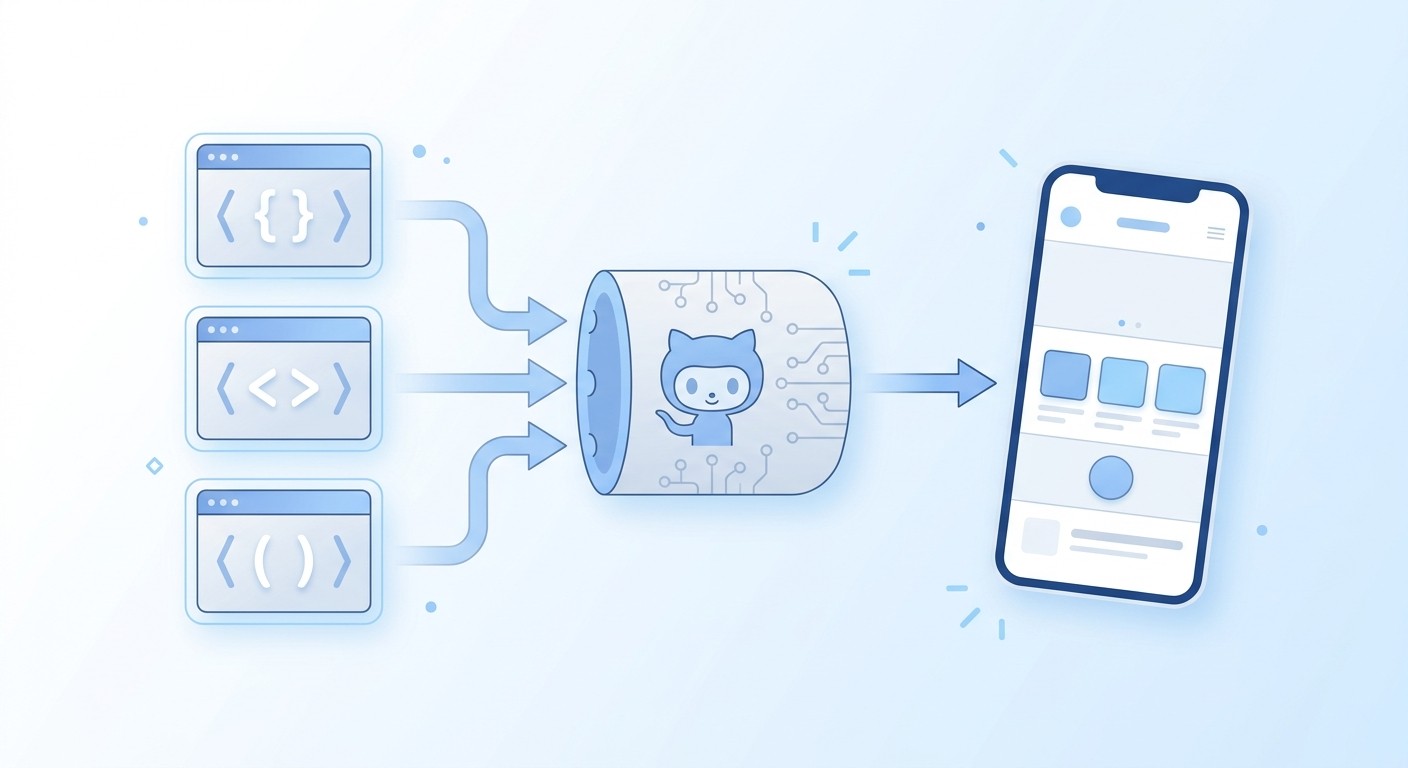
This is the part Base44 and Lovable don't do, since both build web apps. CatDoes builds with React Native and Expo, so one codebase runs on iOS, Android, and the web. The app uses native UI components instead of wrapping your website in a WebView.
After the import, ask the agent to build the mobile version. It uses your React code as the starting point and adapts the layout to mobile patterns like tab bars and stack navigation. You can preview it in the browser, or on your phone with Expo Go.
When it's ready, tell the agent where to release it:
Web: a
catdoes.appaddress, or your own custom domain.Android: needs a paid plan and an Expo account. Builds usually take 10 to 30 minutes, and then you publish the build on Google Play.
iOS: needs a paid plan, an Expo account, and an Apple Developer account. After the build, the agent can submit it to the App Store, and you choose between TestFlight and a public release.
For the conversion in more depth, see our guides to turning a Base44 app into a mobile app and converting a Lovable app to native iOS and Android. Both builders write React, so our guide to converting a React app to a native app explains what changes in the code.
What Happens to Your Backend
GitHub carries your code, not your data. Your database, user accounts, and stored files stay where they are.
For Lovable, that's Lovable Cloud. Lovable's docs say the backend can stay in place when you move the frontend somewhere else. For Base44, your code talks to Base44's backend through its JavaScript SDK, and Base44 lists React Native apps as a supported way to use that backend.
So you have two options. Keep your existing backend running while you build in CatDoes, or have the agent set up CatDoes Cloud, which includes a database, auth, storage, edge functions, and realtime on every plan. Moving existing users and data across is its own job, so plan it before you switch.
Fixing Common Sync and Import Problems

Most problems during the move come down to repo access, branches, or two tools editing the same code.
Your Repo Isn't in the CatDoes List
CatDoes only sees the repos you gave it access to when you authorized it on GitHub. If you picked specific repositories, open your GitHub settings (or your organization's, if the repo belongs to one), go to Applications, click Configure next to CatDoes, and add the repo. Then start the import again.
Base44 Changes Aren't Showing Up
Base44 only syncs main. If your repo's default branch is master, it isn't supported. Changes pushed to any other branch reach Base44 only after you merge them into main.
Lovable Created a New Repo
That happens when a project is disconnected and connected again. Your CatDoes project is still linked to the old repo. Either import the new repo as a fresh project, or, with sync on, click Change on the GitHub Integration card and pick the new repo.
Two Tools Keep Overwriting Each Other
That means Base44 or Lovable and CatDoes are syncing the same branch. Move CatDoes to its own branch as described in Step 3. Before you merge that branch into main, disconnect the old builder so it stops syncing.
Frequently Asked Questions
Can you import a GitHub repo into Lovable?
No. Lovable's docs say you can only export from Lovable to GitHub, not the other way around, and every connection starts with a new repo. To keep building on a repo you already have with an AI agent, import it into CatDoes.
Can I move my Base44 app to CatDoes?
Yes. Connect Base44 to GitHub, which needs the Builder plan or higher, then choose Import from GitHub in CatDoes. The agent gets all of your code, including pages behind a login.
Which CatDoes plan do I need to import from GitHub?
Import from GitHub is included from the Core plan up. Two-way GitHub sync and code export need the Plus plan or above.
Will my users and data move with the app?
No. The repo holds your code. Your data and users stay in Base44's backend or Lovable Cloud until you move them, and you can either keep using that backend or set up CatDoes Cloud.
Can I keep using Base44 or Lovable after importing?
Yes. The import itself doesn't change your original project. Before your first prompt in CatDoes, give it its own branch so the two tools don't overwrite each other.
Does this work with Bolt or other builders?
Yes. Import from GitHub works with any repo, including Bolt projects and code you wrote yourself.
Is Base44's GitHub sync free?
No. Base44's two-way GitHub sync needs the Builder plan or higher, and only the app's owner can connect it. Lovable's GitHub sync works on all Lovable plans.
Ready to move your app? Import your repo into CatDoes and ask the agent to build the mobile version.
Nafis Amiri
Co-Founder of CatDoes


