Blog
Tutorials
App Store Product Page: 2026 Specs & Optimization
Your 2026 guide to the App Store product page: exact character limits, screenshot specs, app previews, and the custom pages and A/B tests that lift installs.

Nafis Amiri
Co-Founder of CatDoes
TL;DR: An App Store product page is your app’s listing on Apple’s App Store: the screen people see before they tap “Get.” You fill five text fields (app name and subtitle at 30 characters each, a hidden 100-character keyword field, 170 characters of promotional text, and a 4,000-character description), upload up to 10 screenshots and 3 app preview videos, and add a 1024×1024 icon. The name, subtitle, and keyword field drive search ranking; the first two screenshots and the opening lines of the description drive installs. In 2026 you can A/B test the page for free and run up to 70 custom product pages, now discoverable in organic search, to push conversion higher.
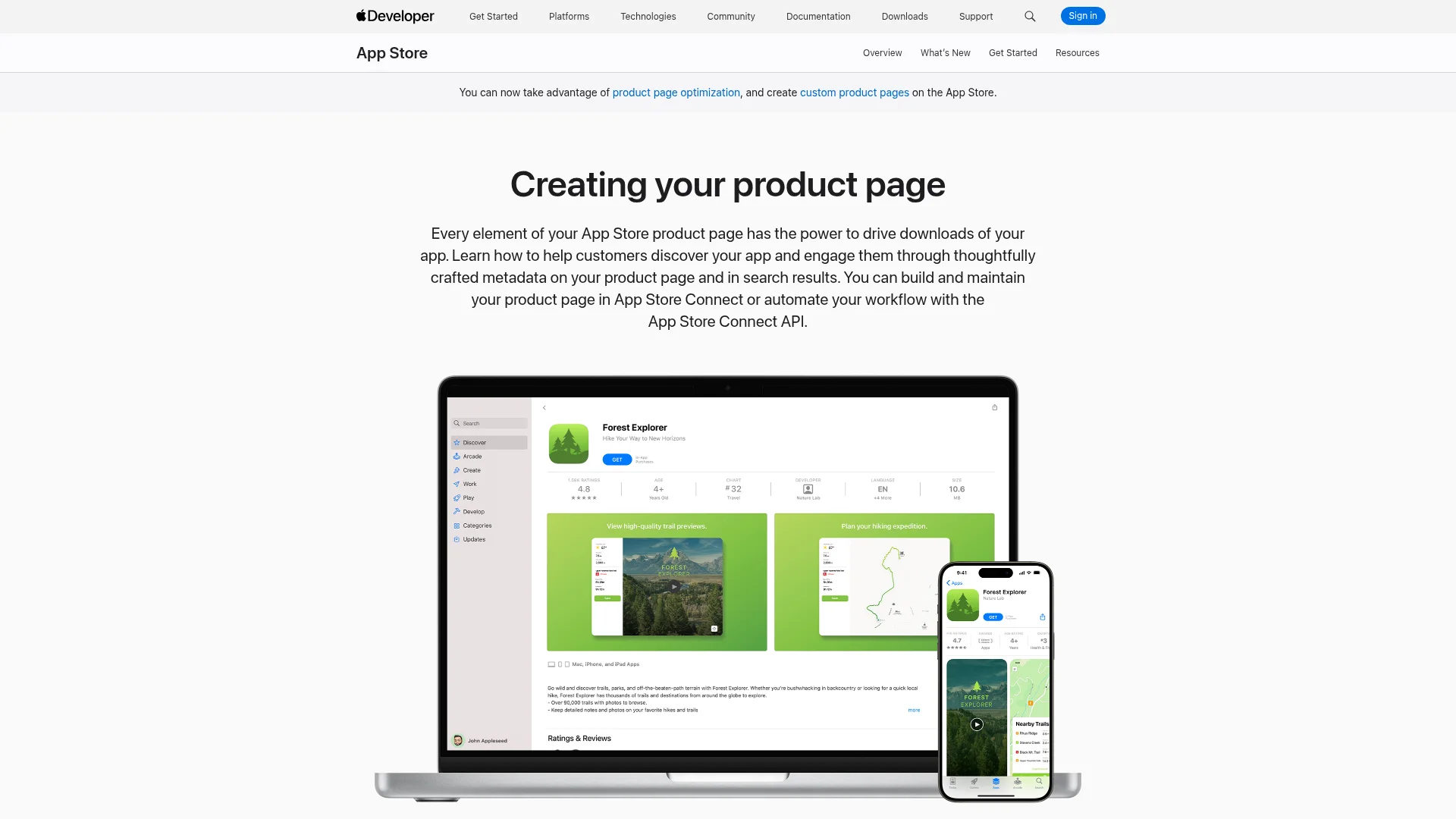
Getting your app approved is only half the battle. Your App Store product page is where a curious user decides whether to install or scroll past, and most first-time founders treat it as an afterthought. This guide covers every field, the exact 2026 character limits and screenshot specs straight from Apple, and the free optimization tools that can lift conversion by double digits.
Table of Contents
What Is an App Store Product Page?
2026 Specs and Limits at a Glance
What You Need Before You Start
App Name and Subtitle
The Keywords Field
Promotional Text and Description
Screenshots: Specs and Strategy
App Preview Videos
Your App Icon
Custom Product Pages and A/B Testing
Common Mistakes That Get You Rejected
Frequently Asked Questions
What Is an App Store Product Page?
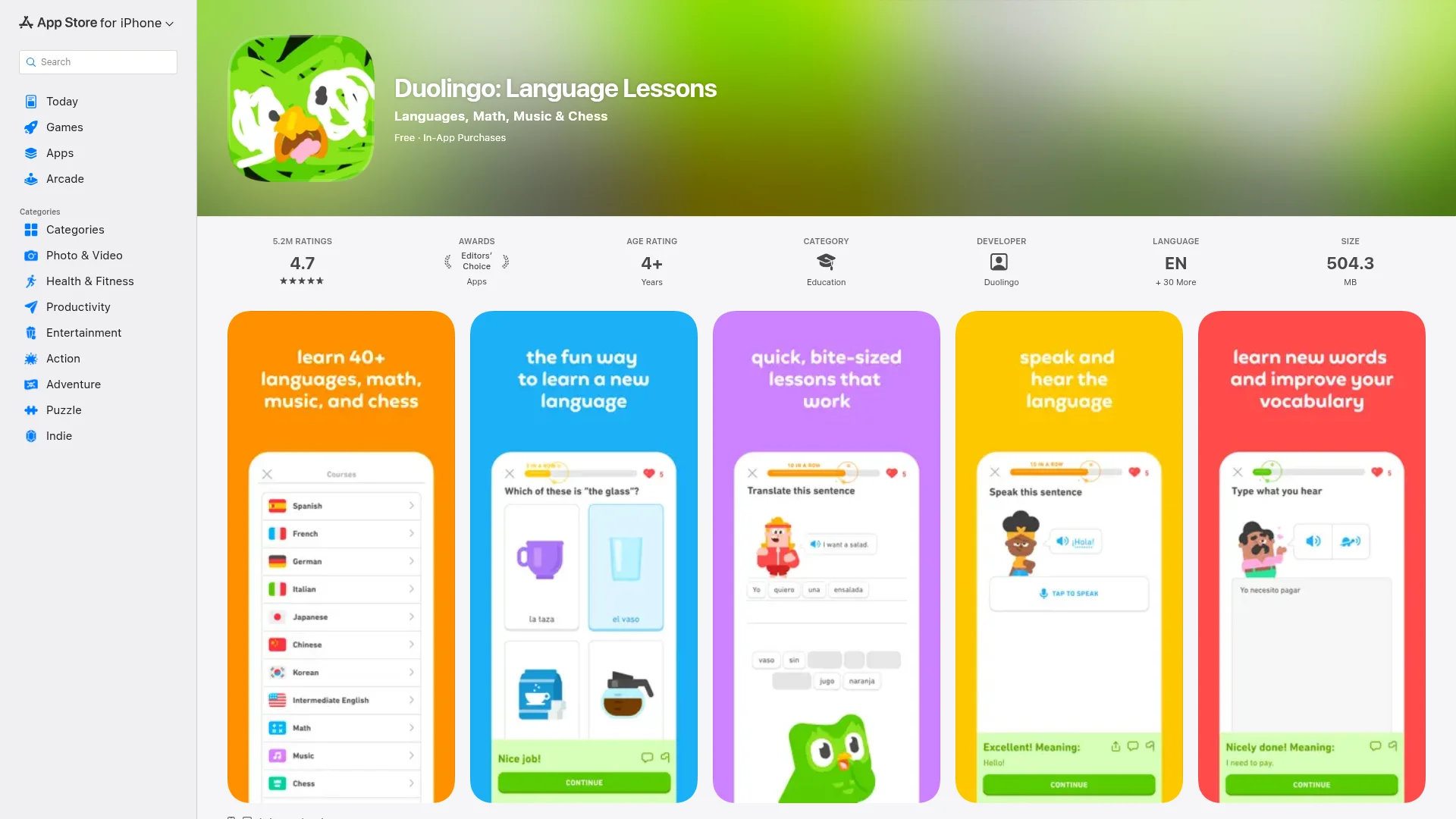
An App Store product page is the public listing for your app on Apple’s App Store. It shows your icon, name, subtitle, ratings, screenshots, preview videos, and description: everything a person sees after searching or tapping an ad. Its only job is to turn a viewer into a download.
The page has two halves. The metadata (name, subtitle, and keyword field) decides whether you appear in search at all. The visuals and copy (screenshots, previews, and description) decide whether the people who find you actually install. Both halves matter, so this guide walks through each field, then the tools that optimize them.
2026 Specs and Limits at a Glance
Every field limit and asset spec for a 2026 App Store product page is in the table below. Bookmark it: Apple ties most of these to an app version, so getting them right before you submit saves a resubmission.
Element | 2026 limit / spec | Indexed for search? |
|---|---|---|
App name | 30 characters | Yes (highest weight) |
Subtitle | 30 characters | Yes (secondary weight) |
Keyword field | 100 characters | Yes (hidden from users) |
Promotional text | 170 characters | No |
Description | 4,000 characters | No on Apple; yes on Google Play |
Screenshots | Up to 10 per localization | No |
App previews | Up to 3; 15–30 sec; under 500 MB | No |
App icon | 1024 × 1024 px PNG | No |
Custom product pages | Up to 70 per app | Only if you assign keywords |
Two rules to remember: only the name, subtitle, and keyword field are indexed for Apple search, and only promotional text can be changed without shipping an app update.
What You Need Before You Start
You build the entire product page inside App Store Connect, Apple’s web dashboard for managing apps. Access requires an active Apple Developer Program membership ($99/year), which also unlocks TestFlight and the tools you need to submit. New to the process? Our guide on how to submit an app to the App Store walks through account setup and the full review flow.
Before you open the editor, gather these assets so you’re not scrambling field by field:
A 1024×1024 app icon (no transparency, no rounded corners; Apple adds those)
At least 4–5 screenshots in the correct base sizes
Your finalized name, subtitle, and keyword list
A description draft and a 170-character promotional line
Optional: one to three app preview videos
App Name and Subtitle
Your app name and subtitle are the two most valuable fields on the page. Both are indexed for search, both are capped at 30 characters, and both require a new app version to change, so lock them in before you submit.
Use the name for your brand plus your single most important keyword (for example, “Notso: Habit Tracker”). Use the subtitle for a second benefit or keyword phrase the name didn’t cover. Don’t waste either on filler like “the best app for.”
The Keywords Field
The keyword field is a hidden, 100-character box that feeds Apple’s search index; users never see it. Separate terms with commas and no spaces (for example, “budget,money,expense,saving”). You can use spaces inside a single phrase like “real estate,” but the comma is what splits one keyword from the next.
To squeeze the most coverage out of 100 characters, follow Apple’s own advice: don’t repeat any word already in your name, subtitle, or category, skip plurals of words you’ve used, and drop generic terms like “app” or filler like “the.” Each unique word recombines with others, so a tight, non-repeating list ranks for far more phrases than a padded one.
Promotional Text and Description
Promotional text is a 170-character line at the very top of your description. It isn’t indexed for search, but it’s the only text field you can update anytime without shipping a new version, ideal for announcing a sale, a feature, or seasonal news. Don’t stuff keywords here; it won’t help ranking.
The description allows up to 4,000 characters of plain text (no bold, italics, or images). On Apple it is not indexed for search at all; it exists purely to convince. That makes the first three lines (roughly the 225 characters shown before the “more” tap) the most important copy on the page.
Pack those opening lines with three things: what the app does, the core benefit, and proof people use it. A strong opener reads like “Track every dollar automatically and save an average of $340 a month. Trusted by 2M+ people.” Then structure the rest for scanners:
Social proof: ratings, download counts, or press mentions
4–6 key features written as benefits, not specs
A simple “how it works” in three steps
Clear pricing: what’s free and what costs money
Write features as outcomes. Instead of “Push notifications,” write “Never miss a bill. Smart reminders alert you before every due date.” If you’re also shipping to Android, note that Google Play does index your description, so the keyword strategy differs. See our guide on how to publish an app on Google Play.
Screenshots: Specs and Strategy
Screenshots are your most powerful conversion tool after the icon, and the first two do most of the work because many users never scroll further. You can upload up to 10 per localized listing; Apple recommends at least 4–5 to tell a complete story.
In 2026, Apple simplified the size requirements. You only need to upload two base sizes, and Apple automatically scales them for smaller devices:
Device | Base size (portrait) |
|---|---|
6.9" iPhone | 1320 × 2868 px |
13" iPad | 2064 × 2752 px |
Export flattened PNG or JPG files in RGB with no alpha channel, and match your app’s real orientation. Apple’s automated checks are stricter than ever on resolution, scaling, and safe areas, so design at the exact dimensions. Don’t upscale, stretch, or add black bars. Give each screenshot a short 5–8 word caption that sells a benefit, not a feature.
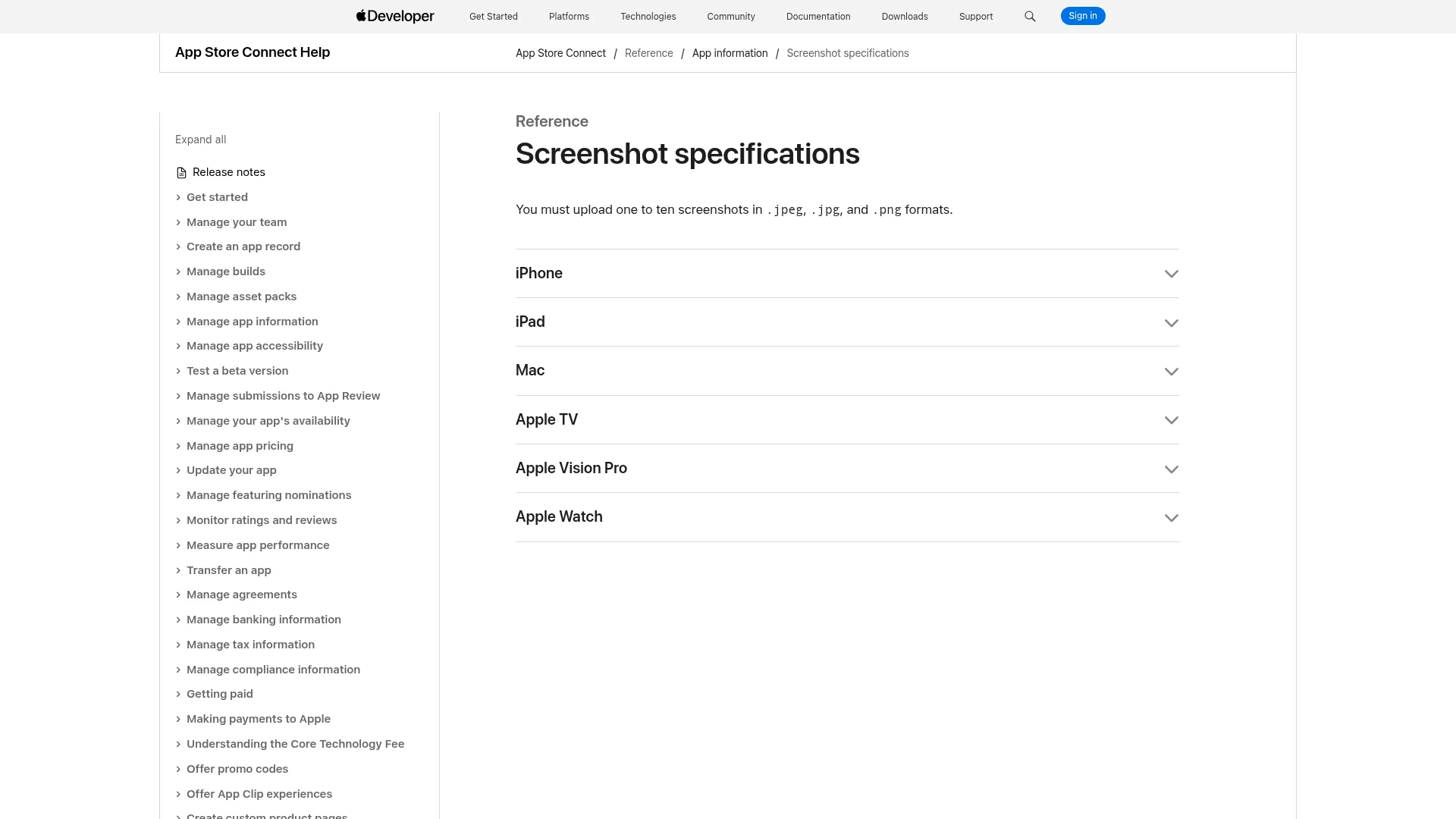
One compliance rule trips up a lot of new apps: screenshots can only show content captured from inside your app, and they can’t display features, pricing, or claims a user won’t actually see after installing. Avoid superlatives, references to other platforms (“Best on Android”), and calls to action like “Download now.”
App Preview Videos
App previews are short, autoplaying videos that show your app in action. You can add up to three per page, each 15–30 seconds, in H.264 or ProRes 422 (HQ), under 500 MB. They must be recorded from within the app; animated mockups aren’t allowed.
Orientation changes where the video appears. A portrait preview takes the first slot on your product page; a landscape preview can surface in search results. Either way, the opening few seconds need to be visually compelling because the video plays muted by default. A well-made preview can lift conversion meaningfully, but it’s optional. Many strong pages run on screenshots alone.
Your App Icon
Your icon is the very first thing a user sees in search, on the page, and on their home screen. Keep it simple, recognizable, and legible at small sizes. Avoid fine detail and text. Upload a 1024×1024 PNG with no transparency and square corners; Apple applies the rounded mask automatically.
If you want to test more than one icon later, build the alternates into your app binary as alternate icons (Xcode 13 or later). That’s the only way Apple will let you A/B test icons, which we’ll cover next.
Custom Product Pages and A/B Testing
Once your default page is live, two free Apple tools push conversion higher: Product Page Optimization (PPO) and Custom Product Pages (CPPs). They sound alike but do different jobs.
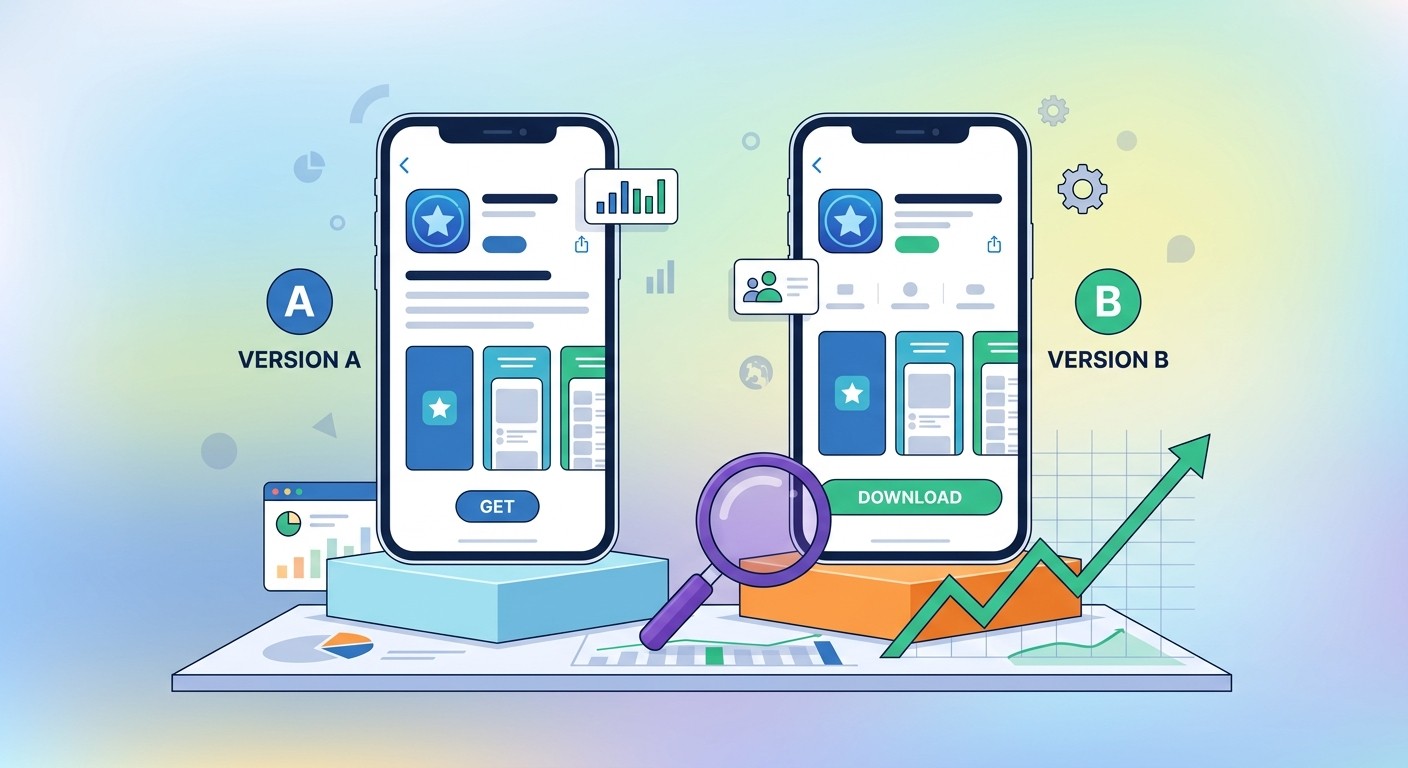
Product Page Optimization is A/B testing for your default page. You create up to three treatments, each a copy with different icons, screenshots, or previews, then choose what share of traffic sees them and run the test up to 90 days. App Analytics calls the winner at 90% confidence, and you set it live for everyone. You can run one test at a time, and you can’t test metadata text.
Custom Product Pages are always-on alternate pages, each with its own URL, screenshots, and messaging tuned to a specific audience or campaign. Two changes made them far more useful: on October 29, 2025 Apple doubled the limit from 35 to 70 pages per app, and since July 30, 2025 a CPP can appear in organic search when you assign it keywords, not just behind a paid link.
The payoff is real. Apptweak’s 2026 benchmark report found apps using CPPs saw conversion lifts up to 8.6% on average, yet only about a third of apps use them. Well-targeted pages do better: CBS Sports reported a 20% conversion increase and State of Survival a 33% lift. Apple’s own figure is higher still: a 2.5-percentage-point jump, or a 156% increase over the 1.6% average default conversion rate, because it compares CPP-referred traffic against the baseline.
Start small: three to five pages mapped to your highest-priority audiences, then feed your winning CPP ideas back into PPO tests on the default page. Custom pages handle the product page itself; for the broader ranking playbook (keyword research, category, and reviews), see our App Store optimization tips for 2026.
Common Mistakes That Get You Rejected
Most product page rejections come from a handful of avoidable errors. Steer clear of these:
Screenshots showing features or pricing the installed app doesn’t have
References to other platforms or “Download now” calls to action in visuals
Keyword stuffing in the name, subtitle, or promotional text
Using competitor names or unauthorized trademarks in keywords
Low-resolution or stretched screenshots that fail the 2026 automated checks
Remember that 2026 ranking also weighs engagement: apps with strong Day-7 retention now rank above apps with more downloads but weaker stickiness. A polished product page gets the install, but a stable, useful app keeps the ranking.
Frequently Asked Questions
What are the App Store character limits in 2026?
App name and subtitle are 30 characters each, the keyword field is 100 characters, promotional text is 170 characters, and the description allows 4,000 characters. Only the name, subtitle, and keyword field are indexed for Apple search.
How long does it take to build an App Store product page?
The fields themselves take an hour or two to fill in. Producing polished screenshots and a preview video usually takes a day or two, depending on how much design work you do.
Can I change my product page after launch?
Promotional text and review responses update anytime. The name, subtitle, keywords, description, and screenshots are tied to an app version, so changing them means submitting an update.
How many screenshots should I upload?
You can add up to 10, but Apple recommends at least 4–5. Make the first two count, since many users decide based on those alone.
Does my description affect App Store search ranking?
No. On the Apple App Store, only the name, subtitle, keyword field, and category are indexed for search. The description is a conversion tool. On Google Play, the description is indexed.
Do custom product pages appear in App Store search?
They can. Since July 30, 2025, you can assign keywords to a custom product page so it surfaces in organic search; without keywords, it only appears when someone follows its unique URL. Each app can run up to 70 custom product pages.
What’s the difference between PPO and custom product pages?
PPO is an A/B test of your default page across all organic traffic. Custom product pages are always-on alternate pages targeted at specific audiences, each with a unique URL.
Ship Your Product Page Faster
A great App Store product page is part craft, part testing. Get the metadata and screenshots right, then optimize with PPO and custom pages over time. If you’d rather spend that energy on the app itself, CatDoes builds, deploys, and ships your app to the App Store from a single prompt, so you can go from idea to live listing without wrangling the toolchain. Build your app, then build the page that sells it.
Nafis Amiri
Co-Founder of CatDoes


