Blog
Tutorials
Play Store Screenshot Size: Every Spec (2026)
Play Store screenshot size for 2026: export phone shots at 1080 × 1920 px, see tablet and feature graphic specs, and learn why phone screenshots get rejected.
Nafis Amiri
Co-Founder of CatDoes
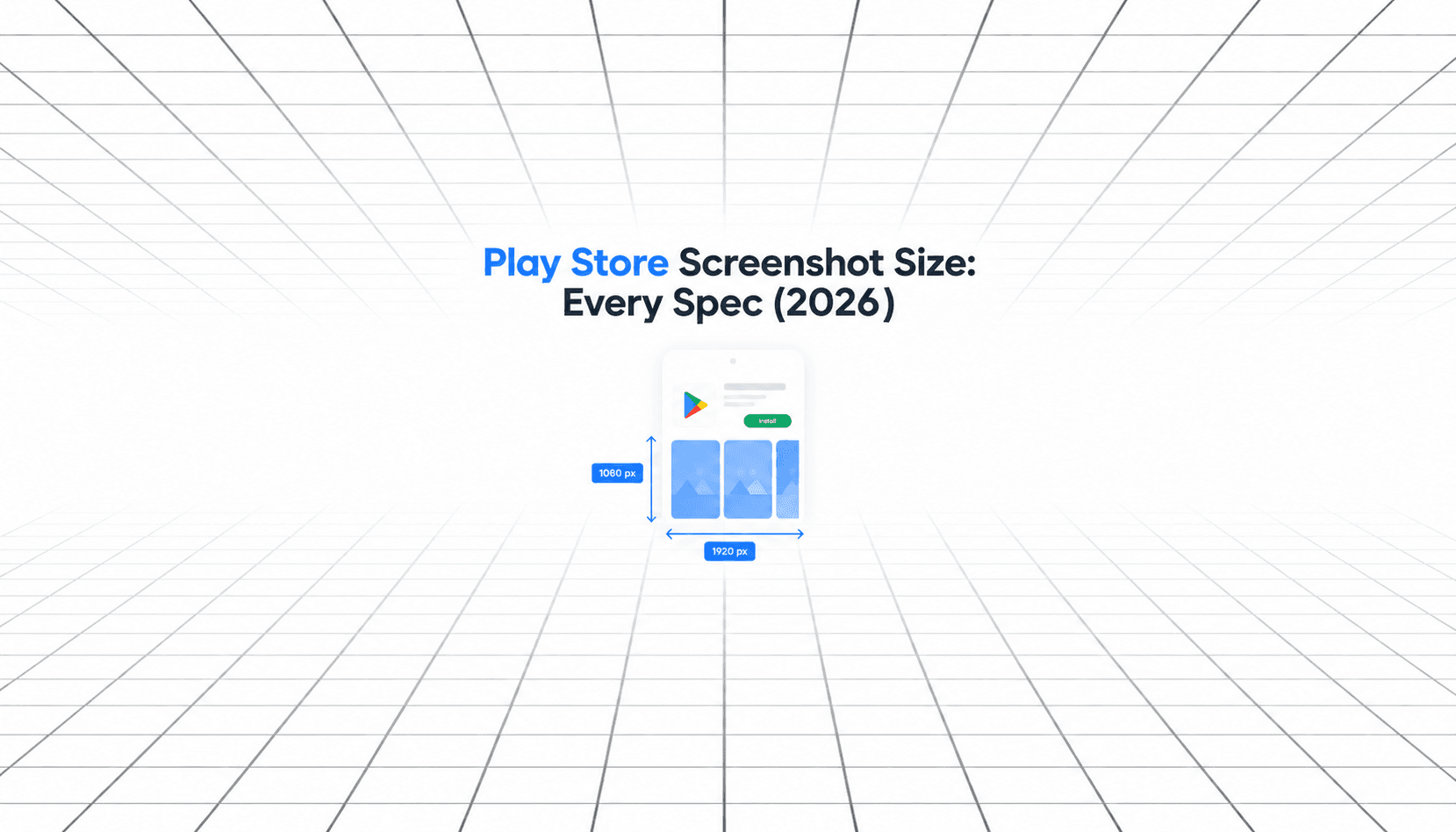
The right Play Store screenshot size in 2026 is 1080 × 1920 px for portrait phone screenshots, or 1920 × 1080 px for landscape. Google Play accepts a wider range, but that exact 9:16 size is the one that also qualifies your app for Google's large-format recommendation spots.
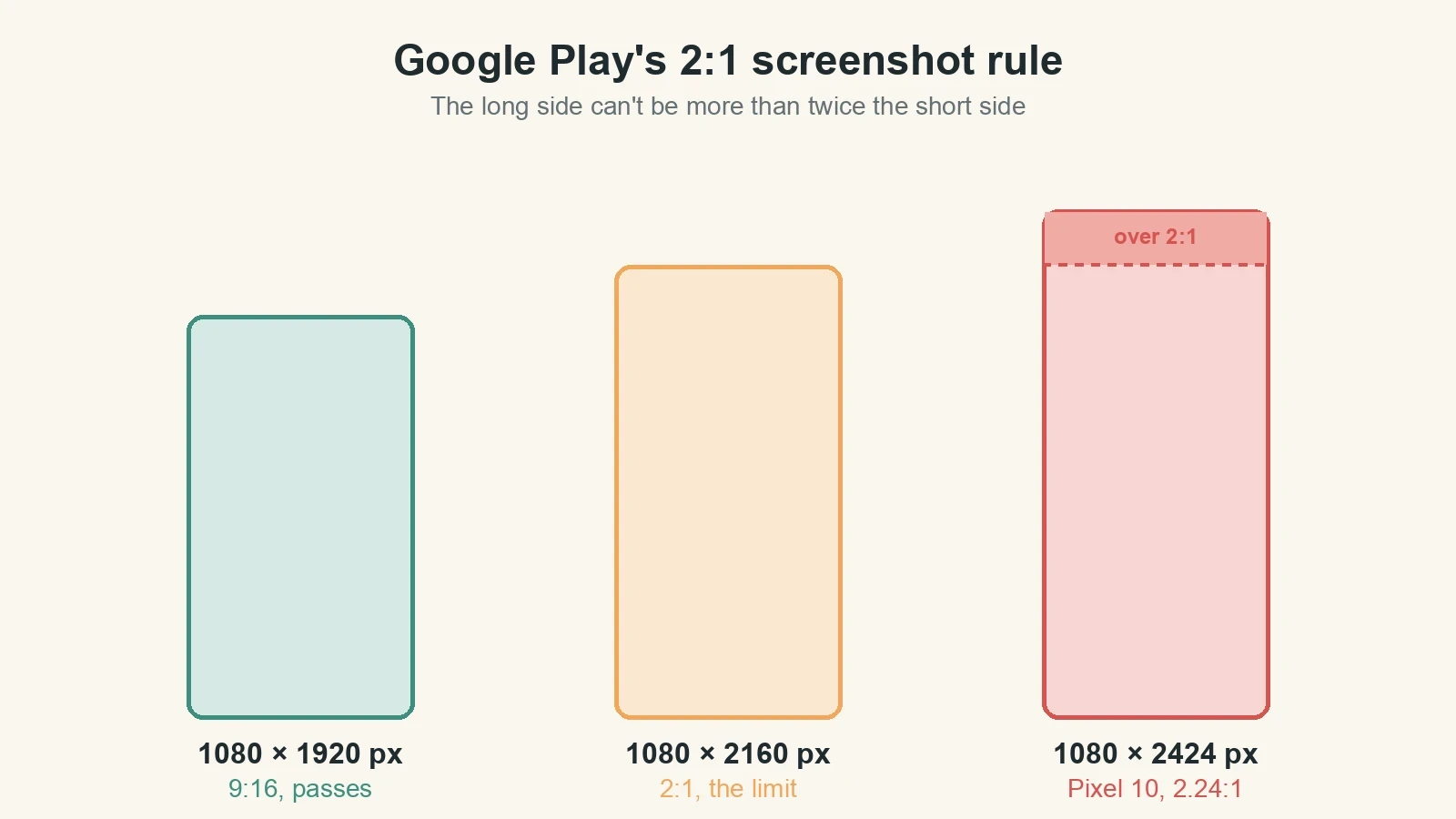
There's a catch if you upload screenshots straight from your phone. Google's own Pixel 10 captures them at 1080 × 2424 px, and that shape breaks Google Play's aspect ratio limit.
Below you'll find every size Google Play asks for: phones, tablets, Chromebooks, watches, TVs, cars, and XR headsets. After that come the feature graphic and icon specs, then 6 steps for turning an app built with CatDoes into screenshots that pass on the first upload.
TL;DR: Export Play Store phone screenshots at 1080 × 1920 px (9:16) as JPEG or 24-bit PNG with no transparency. Upload at least 2 and up to 8, and use 4 or more if you want to qualify for recommendations. Tablet and Chromebook screenshots need a 16:9 or 9:16 ratio with each side between 1,080 and 7,680 px. The feature graphic is 1024 × 500 px and the app icon is 512 × 512 px. If you build your app with CatDoes, open it on your phone with Expo Go, capture your screens there, and crop them to 9:16 before you upload.
Table of Contents
Play Store Screenshot Sizes at a Glance
Google Play Phone Screenshot Requirements
Tablet and Chromebook Screenshot Sizes
Wear OS, Android TV, Car, and XR Screenshot Sizes
Google Play Feature Graphic Size (1024 × 500)
App Icon and Preview Video Specs
How to Make Play Store Screenshots With CatDoes in 6 Steps
Why Google Play Rejects Screenshots (and How to Fix It)
Play Store vs App Store Screenshot Sizes
Frequently Asked Questions
Get Your Play Store Screenshots Right the First Time
Play Store Screenshot Sizes at a Glance
Here's every graphic asset Google Play asks for, with exact dimensions, taken from Google's Play Console Help page on preview assets. You need the phone screenshots, feature graphic, and app icon to publish. Everything else depends on which devices you ship to.
Asset | Size | Format | How many |
|---|---|---|---|
Phone screenshots | 1080 × 1920 px recommended (320 to 3,840 px per side, max 2:1) | JPEG or 24-bit PNG, no alpha | 2 to 8 (4+ for recommendations) |
7-inch and 10-inch tablet screenshots | 16:9 or 9:16, 1,080 to 7,680 px per side | JPEG or 24-bit PNG, no alpha | Up to 8 each, 4+ suggested |
Chromebook screenshots | 16:9 or 9:16, 1,080 to 7,680 px per side | JPEG or 24-bit PNG, no alpha | Up to 8, 4+ suggested |
Wear OS screenshots | 1:1, at least 384 × 384 px | No transparency or masking | At least 1 |
Android TV screenshots | General screenshot limits | JPEG or 24-bit PNG, no alpha | At least 1 for TV apps |
Android Automotive OS screenshots | 800 × 1280 px portrait, 1024 × 768 px landscape | Generic system UI only | 2 of each if you provide them |
Android XR screenshots | 8:5, 3840 × 2400 px recommended (1920 × 1200 px minimum) | PNG or JPEG, up to 8 MB | 4 to 8 |
Feature graphic | 1024 × 500 px exactly | JPEG or 24-bit PNG, no alpha | 1 (required) |
App icon | 512 × 512 px | 32-bit PNG, max 1,024 KB | 1 (required) |
TV banner | 1280 × 720 px | JPEG or 24-bit PNG, no alpha | 1 for TV apps |
Preview video | YouTube URL | Public or unlisted, ads off | 1 (optional) |
Google Play Phone Screenshot Requirements
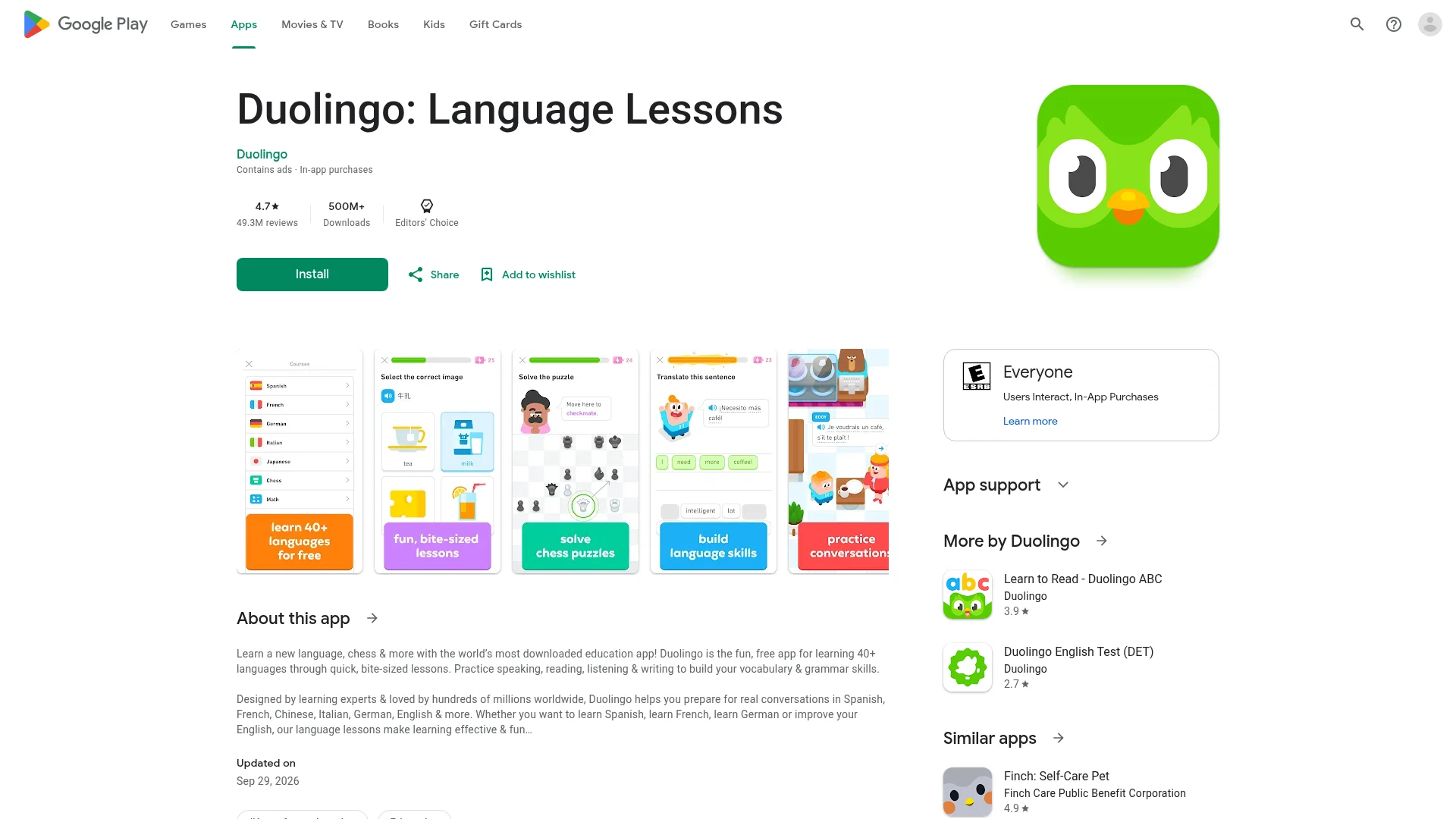
Google splits its screenshot rules into hard requirements and recommendations. These are the hard ones. Get the size or ratio wrong and the Play Console won't take the file, however good it looks.
The Hard Limits
JPEG or 24-bit PNG, with no alpha channel (so no transparency).
Shortest side at least 320 px.
Longest side no more than 3,840 px.
Long side no more than twice the short side, a 2:1 ratio.
At least 2 screenshots to publish, and up to 8 per device type.
Up to 8 MB per file, the cap shown on the Play Console upload screen.
Why Screenshots Straight From Your Phone Get Rejected
The 2:1 rule is the one that catches raw phone screenshots. Google lists the Pixel 10 display at 1080 × 2424 px with a 20:9 aspect ratio. Divide 2,424 by 1,080 and you get 2.24, which is over Google Play's limit.
Any phone with a 20:9 screen has the same problem, since 20 ÷ 9 is 2.22. At a width of 1,080 px, the tallest screenshot Google Play will take is 1080 × 2160 px. So crop or resize to 9:16 before you upload (the steps further down show how), and if an upload ever fails, check this first.
The Best Play Store Screenshot Size: 1080 × 1920 px
Some sections of Google Play show recommended apps in a large format built from screenshots. To qualify, an app needs at least 4 screenshots at 1080 px or more: 9:16 portrait at a minimum of 1080 × 1920 px, or 16:9 landscape at a minimum of 1920 × 1080 px. Games need at least 3.
That makes 1080 × 1920 px the smallest size that meets every rule. Larger 9:16 files are allowed, up to 2160 × 3840 px before you hit the 3,840 px cap. My advice is to stick with 1080 × 1920. It clears every check and keeps the files light.
Tablet and Chromebook Screenshot Sizes
Tablet and Chromebook screenshots follow stricter rules than phones: 16:9 landscape or 9:16 portrait, with each side between 1,080 and 7,680 px. The Play Console has separate slots for 7-inch tablets, 10-inch tablets, and Chromebooks, and each takes up to 8 screenshots.
They're optional, but Google suggests adding at least 4 per device type. It also asks you to leave out extra text that isn't part of the app, because it can get cut off on Play's homepages on some screen sizes. Show your real tablet layout, not a stretched phone screen.
Watch out for 16:10 sizes like 1200 × 1920 or 1600 × 2560, which still show up in some screenshot guides. Those are 5:8, not 9:16, so they don't match the ratio Google asks for on large screens. Safe portrait exports are 1080 × 1920, 1440 × 2560, or 2160 × 3840 px, and the same numbers flipped work for landscape.
Wear OS, Android TV, Car, and XR Screenshot Sizes
Skip this section unless you ship to one of these devices. Each has its own rule, and some of them are strict.
Wear OS
Upload at least 1 screenshot at a 1:1 ratio and a minimum of 384 × 384 px. Show only the app interface: no device frames, extra text, graphics, or backgrounds, and no transparent backgrounds or masking. If your app has Tiles, Google recommends including a screenshot of one.
Android TV
You need at least 1 Android TV screenshot before you can publish a TV app, plus a TV banner at 1280 × 720 px (JPEG or 24-bit PNG, no alpha). TV screenshots only appear on Android TV devices.
Android Automotive OS
If you provide car screenshots, you need at least 2 portrait at 800 × 1280 px and 2 landscape at 1024 × 768 px. They're required unless your app is in one of the parked app categories. Capture them from the Android Automotive OS emulator's generic system image, not a specific carmaker's interface.
Android XR
Upload 4 to 8 screenshots as PNG or JPEG, up to 8 MB each, at an 8:5 ratio. Google recommends 3840 × 2400 px, with 1920 × 1200 px as the minimum.
Google Play Feature Graphic Size (1024 × 500)
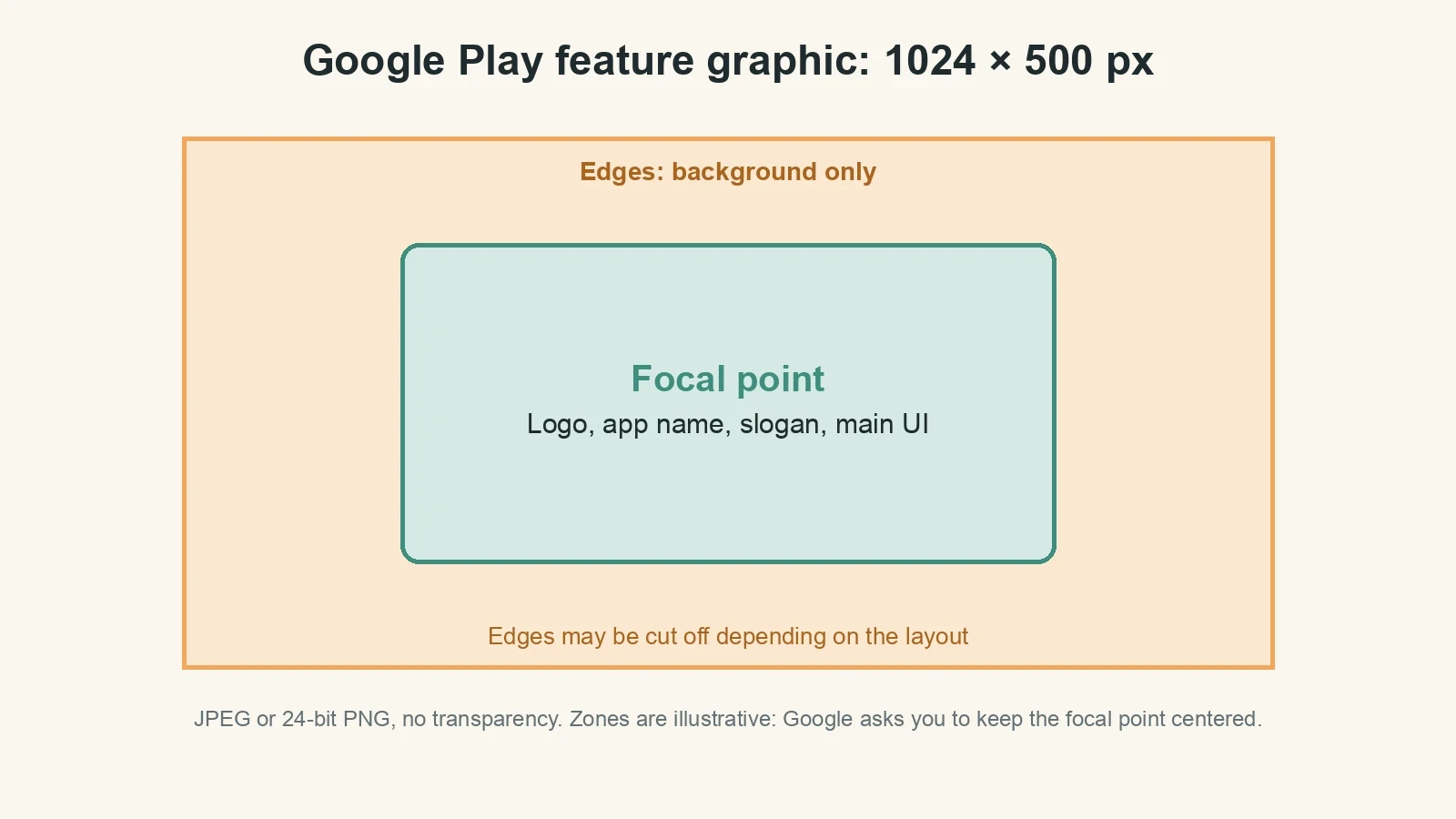
The Google Play feature graphic must be exactly 1024 × 500 px, saved as JPEG or 24-bit PNG with no alpha. You can't publish without one, and the Play Console upload screen caps it at 15 MB.
Google uses it as the cover image for your preview video and in large-format collections of apps, including ads. Different layouts crop it differently, so keep your logo, app name, slogan, and main UI toward the center and leave the edges for background.
Google's other recommendations for the feature graphic:
Don't repeat your app icon as the main branding. The graphic can appear alongside your icon, so the branding looks duplicated.
Avoid pure white, black, or dark gray. Those colors blend into Google Play's background.
Skip fine details, since they won't be visible on many phone screens.
Leave out words like "Best," "#1," "Top," "New," "Free," or "Sale," and download counts.
Don't use device imagery, Google Play or other store badges, or third-party logos you don't have permission for.
Add alt text of 140 characters or less, like "The transaction complete screen."
App Icon and Preview Video Specs
The icon is required and the video is optional. Both have a rule or two that's easy to miss.
App Icon: 512 × 512 px
Your Play Store icon is a 512 × 512 px, 32-bit PNG in the sRGB color space, up to 1,024 KB. According to Google's icon design specifications, you upload it as a full square. Google Play adds the rounded corners (a radius equal to 30% of the icon size) and the drop shadow itself, so leave both out of your file.
This store icon is separate from the launcher icon inside your app, and it should be a higher-resolution version of it. Don't add badges or text that suggest ranking, price, or a Google Play program.
Preview Video
You can add one preview video by pasting a YouTube video URL, not a playlist or channel link, and without timecodes. The video must be public or unlisted, with ads turned off, not age-restricted, and embeddable.
It plays before your screenshots, and it may autoplay muted for up to 30 seconds. Google recommends showing the real app within the first 10 seconds and keeping at least 80% of the video focused on the actual user experience.
How to Make Play Store Screenshots With CatDoes in 6 Steps
CatDoes builds your Android app from a plain-English description, so your screenshots come from a real, running app instead of a mockup. That matters, because Google wants screenshots to show the actual in-app experience. Steps 3 to 6 work the same for an app built any other way.
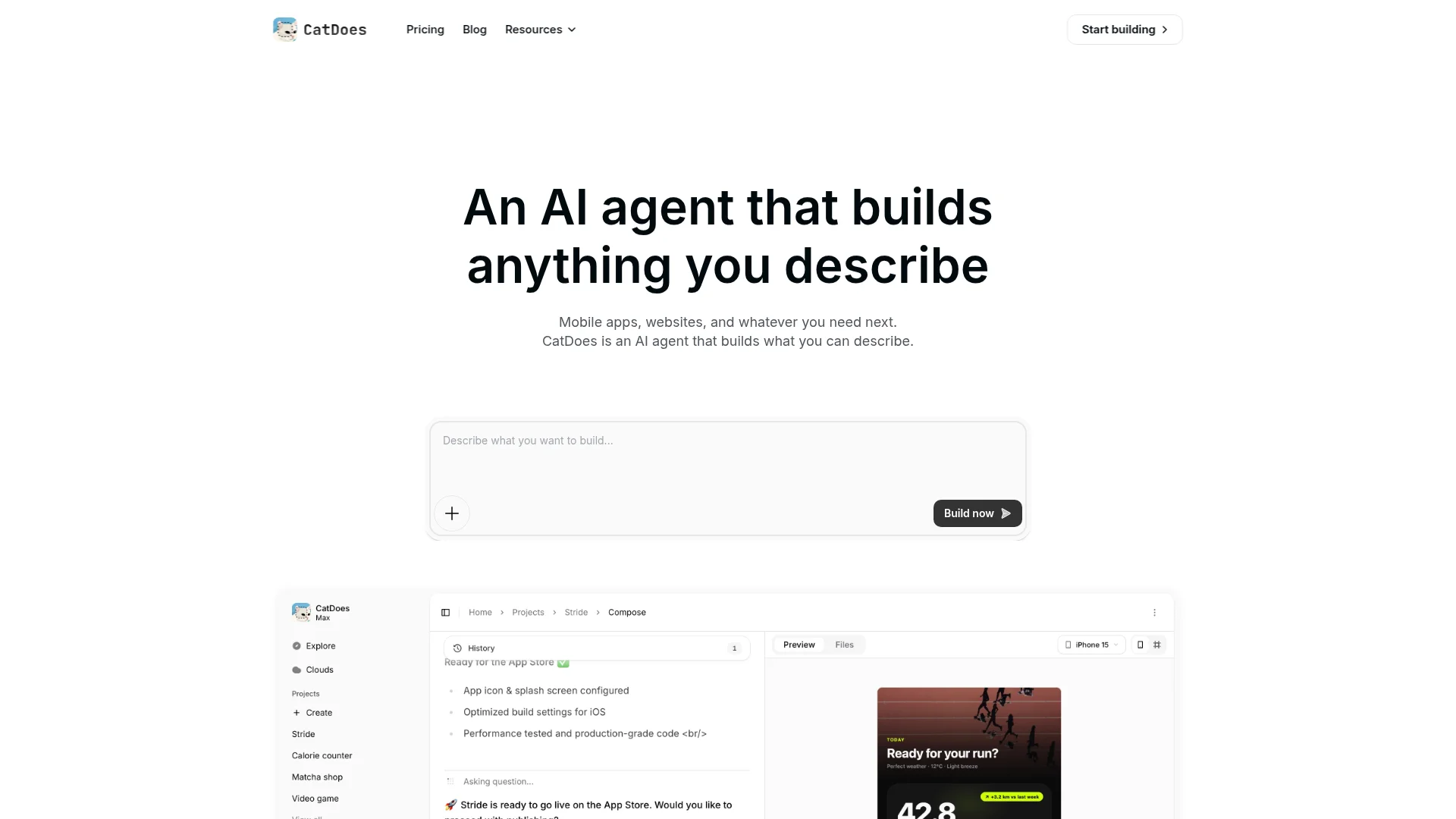
Build the app and open it on your phone. Describe your app to CatDoes, then scan the QR code in the preview panel with Expo Go on an Android phone. Use the phone rather than the browser preview, because the browser preview runs in a web view and can look slightly different from the native app.
Fill it with realistic data. Empty lists and placeholder text make weak screenshots. Ask the agent for believable sample content first, for example "Add 10 realistic sample tasks with due dates so the home screen looks lived-in."
Clean up the status bar. Google asks for no carrier name and no notifications, with full battery, Wi-Fi, and signal icons. On a 1080 × 2424 screenshot, the centered crop in the next step trims 252 px from the top, which usually takes the status bar with it.
Crop to 9:16 and export as JPEG. Crop each screenshot to 1080 × 1920 px and save it as JPEG, which drops the alpha channel. The commands below do both in one go.
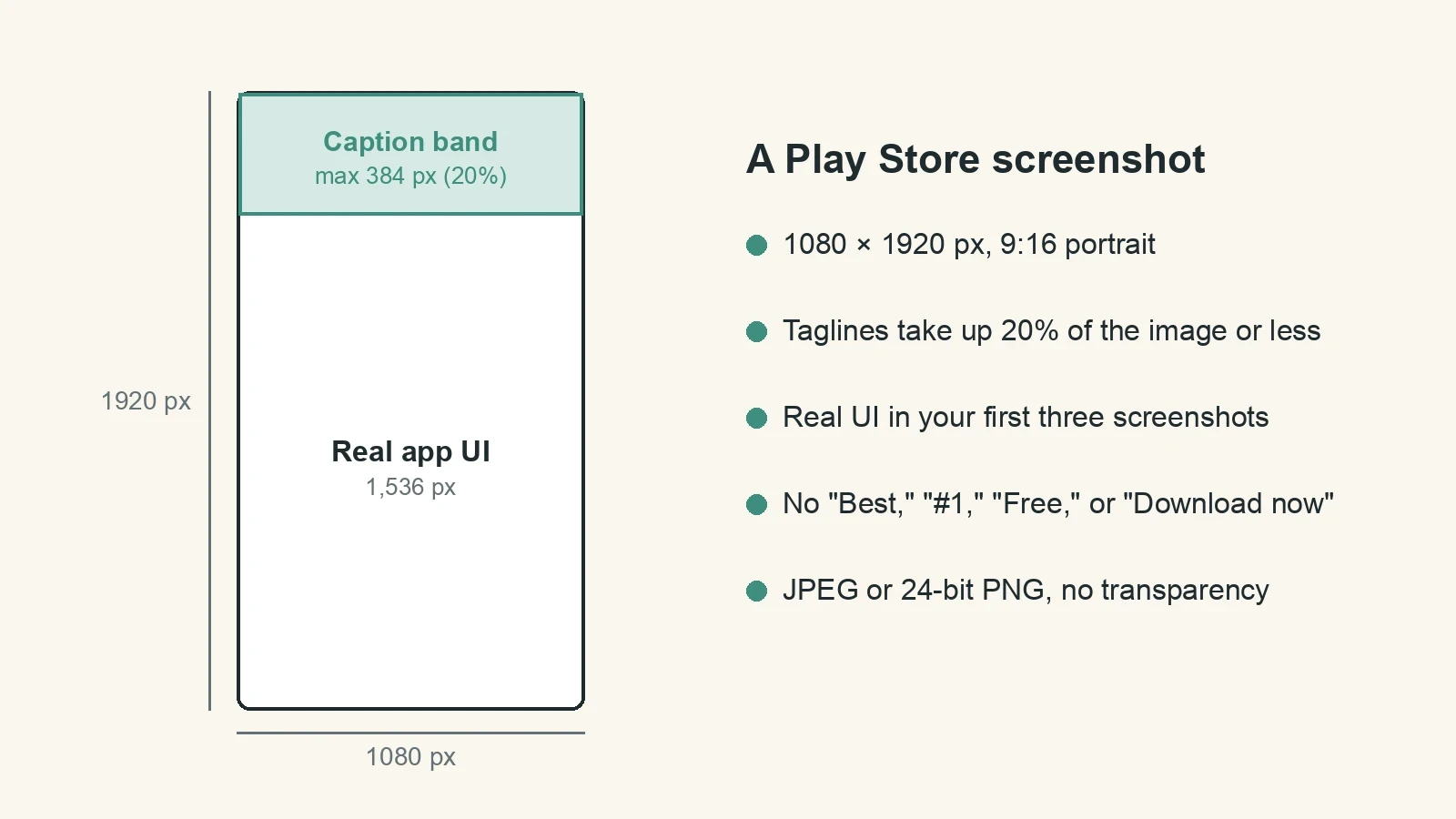
Add captions only if they help. Google says taglines shouldn't take up more than 20% of the image, which works out to a 384 px band on a 1080 × 1920 screenshot. Put your strongest screens first, since Google asks you to prioritize real UI in the first three, and skip calls to action like "Download now."
Upload in Play Console. Go to Grow users, then Store presence, then Main store listing, and open the Graphics section. Add alt text to each screenshot, 140 characters or less, and save.
Crop Commands for Mac, Windows, and Linux
We ran both commands on a 1080 × 2424 test file before publishing. Each one produced a 1080 × 1920 JPEG with no alpha channel, cutting 252 px from the top and bottom.
On a Mac, the built-in sips tool handles screenshots that are already 1,080 px wide:
On any system with Python, this Pillow script handles any screenshot width. Install Pillow first with pip install pillow.
Don't have the app yet? Build my Android app with CatDoes
Why Google Play Rejects Screenshots (and How to Fix It)
Some of these problems stop the upload cold. Others let you publish but keep your app out of Google's bigger promotional spots, which is easy to miss because the listing still goes live.
Problem | What happens | Fix |
|---|---|---|
Raw screenshot from a 20:9 phone | Upload fails: the ratio is over 2:1 | Crop to 1080 × 1920 px |
PNG with transparency | Breaks Google's no-alpha rule | Export as JPEG or 24-bit PNG |
A side under 320 px or over 3,840 px | Upload fails | Resize to 1080 × 1920 px |
Feature graphic not exactly 1024 × 500 px | Upload fails | Export at 1024 × 500 px |
Fewer than 4 phone screenshots, or under 1080 px | Publishes, but can't appear in large-format recommendations | Upload 4 or more at 1080 × 1920 px |
"Best," "#1," "Free," or "Download now" in the image | Can limit how Google promotes your app | Describe what the screen does instead |
Device frames around screenshots | Google advises against device imagery, and Wear OS listings can't use frames | Show the app UI edge to edge |
Play Store vs App Store Screenshot Sizes
You can't reuse one set of files for both stores. Apple's iPhone screenshot sizes for the required 6.9-inch display, and the 6.5-inch fallback, are all taller than 2:1. Its 1320 × 2868 px size, for example, has a 2.17 ratio, so it won't upload to Google Play.
Rule | Google Play | Apple App Store |
|---|---|---|
Main phone size | 1080 × 1920 px (9:16) | 6.9-inch iPhone, such as 1320 × 2868 px |
Accepted range | 320 to 3,840 px, max 2:1 | Fixed sizes per display |
Screenshots allowed | 2 to 8 per device type | 1 to 10 |
Format | JPEG or 24-bit PNG, no alpha | JPEG or PNG, no alpha |
Banner image | Feature graphic, 1024 × 500 px, required | None |
Design each screen once, then export it twice: a 9:16 set for Google Play and a 6.9-inch set for Apple. Our App Store screenshot sizes guide covers every iPhone and iPad dimension.
Frequently Asked Questions
What size should Play Store screenshots be?
Use 1080 × 1920 px for portrait (1080 px wide by 1920 px tall) or 1920 × 1080 px for landscape, saved as JPEG or 24-bit PNG with no transparency. Google Play accepts 320 to 3,840 px per side with a maximum 2:1 ratio, but 1080 × 1920 px also meets the minimum for its recommendation formats.
Why does Google Play reject my screenshot?
Often it's the aspect ratio. Screenshots from 20:9 phones like the Pixel 10 (1080 × 2424 px) are taller than 2:1, so crop them to 1080 × 1920 px. Other causes are a side under 320 px or over 3,840 px, or a PNG with an alpha channel, which you fix by exporting as JPEG.
How many screenshots do I need for Google Play?
You need at least 2 screenshots to publish, and you can add up to 8 per device type. Upload at least 4 phone screenshots at 1080 px or more (3 for games) if you want your app to qualify for Google Play's large-format recommendations.
What size is the Google Play feature graphic?
The feature graphic is exactly 1024 × 500 px, as JPEG or 24-bit PNG with no alpha. It's required to publish, and Google recommends keeping your logo and text near the center because different layouts crop the edges.
What is the Play Store screenshot size for tablets?
Tablet screenshots need a 16:9 or 9:16 ratio with each side between 1,080 and 7,680 px, for example 1440 × 2560 px in portrait. They're optional, but Google suggests at least 4 each for 7-inch and 10-inch tablets.
Can I use the same screenshots for the App Store and Google Play?
No. Apple's required 6.9-inch and 6.5-inch iPhone sizes are all taller than Google Play's 2:1 limit, and Google also requires a 1024 × 500 px feature graphic that Apple doesn't use. Design once, then export a separate set for each store.
Can I take Play Store screenshots straight from my phone?
Yes, as long as you crop them first. If you build your app with CatDoes, open it on an Android phone through Expo Go, capture each screen, and crop the files to 1080 × 1920 px before you upload them.
Are device frames allowed in Google Play screenshots?
Google advises against device imagery in phone screenshots because it can look dated quickly, and Wear OS listings must not place screenshots inside device frames. Showing the app UI edge to edge is the safer choice.
Get Your Play Store Screenshots Right the First Time
If you remember one Play Store screenshot size, make it 1080 × 1920 px, exported as JPEG. Upload at least 4 of them, add a 1024 × 500 px feature graphic and a 512 × 512 px icon, and crop anything you capture on a 20:9 phone before it goes near the Play Console.
Once your graphics are ready, our guide on how to publish an app on Google Play covers the rest of the listing, testing, and review. And if you're starting from zero, here's how to create an Android app with AI first.
Ready to build the app behind the screenshots? Start my Android app on CatDoes
Nafis Amiri
Co-Founder of CatDoes