Blog

Tutorials

A Guide to the Add to Homescreen Icon for Users and Developers

Learn how to use the add to homescreen icon on any device and how to implement it for your PWA. A complete guide for users and developers in 2026.

Writer

Nafis Amiri

Co-Founder of CatDoes

Feb 27, 2026

Title slide reading ‘A Guide to the Add to Homescreen Icon for Users and Developers’ on a white background with a subtle perspective grid pattern.

Giving your website an add to homescreen icon is a simple but powerful way to turn it into an app-like shortcut. This gives people instant access right from their phone's main screen, completely skipping the app store. It's especially effective for Progressive Web Apps (PWAs), which are designed to feel just like native apps, right from the browser.

The whole point is to create a faster, more convenient bridge to the content people use most.

Why the Add to Homescreen Icon Is a Game-Changer in 2026

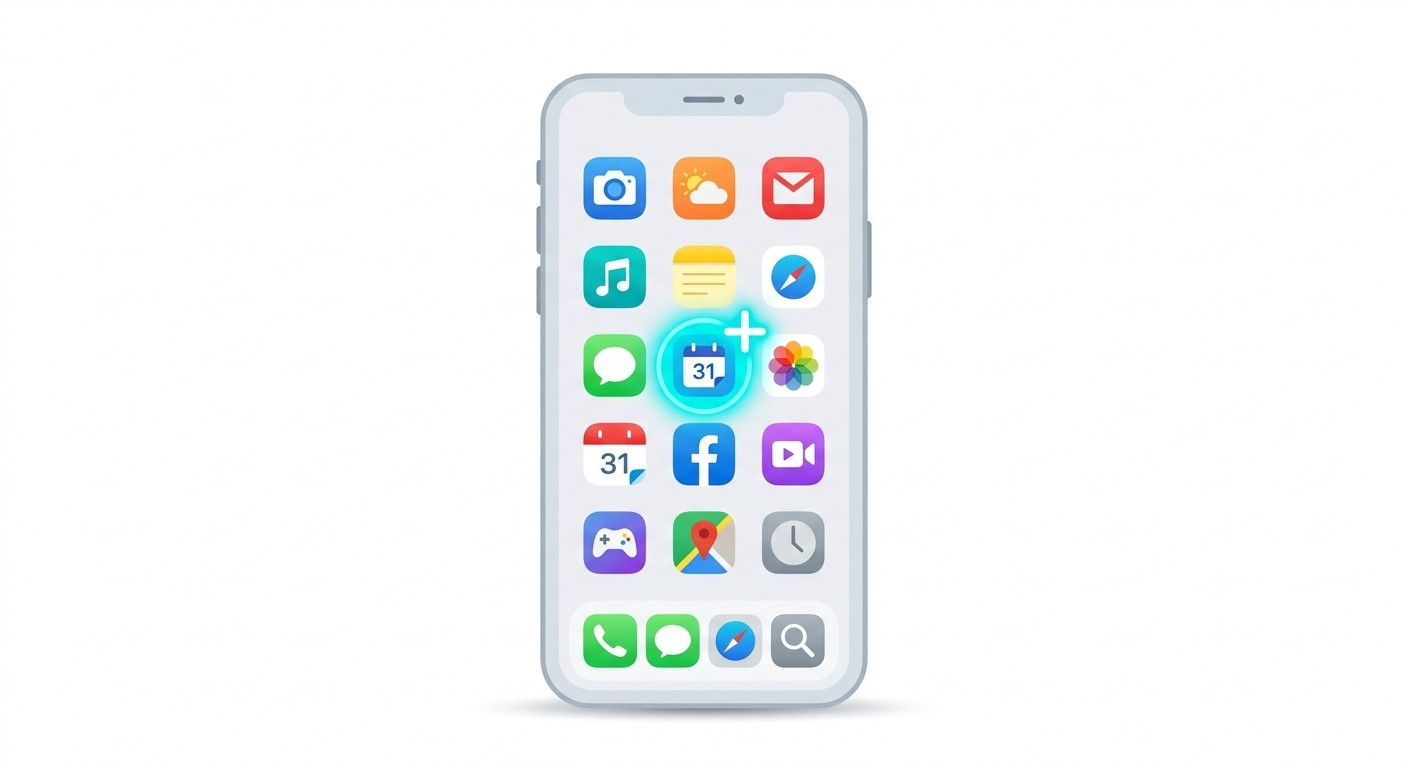
Illustrated hand tapping a glowing 'Add to Home' button with a mail icon on a smartphone screen.

By 2026, digital life is all about immediacy. Users expect zero friction. The old routine of searching an app store, waiting for a download, and then signing in feels clunky and slow. This is where that simple icon becomes so important. It completely blurs the line between a website and a native application.

This shift is happening because of Progressive Web Apps (PWAs). A PWA is just a website built with modern tech to deliver a genuine app experience. When someone adds your PWA to their home screen, they get a lot more than just a bookmark.

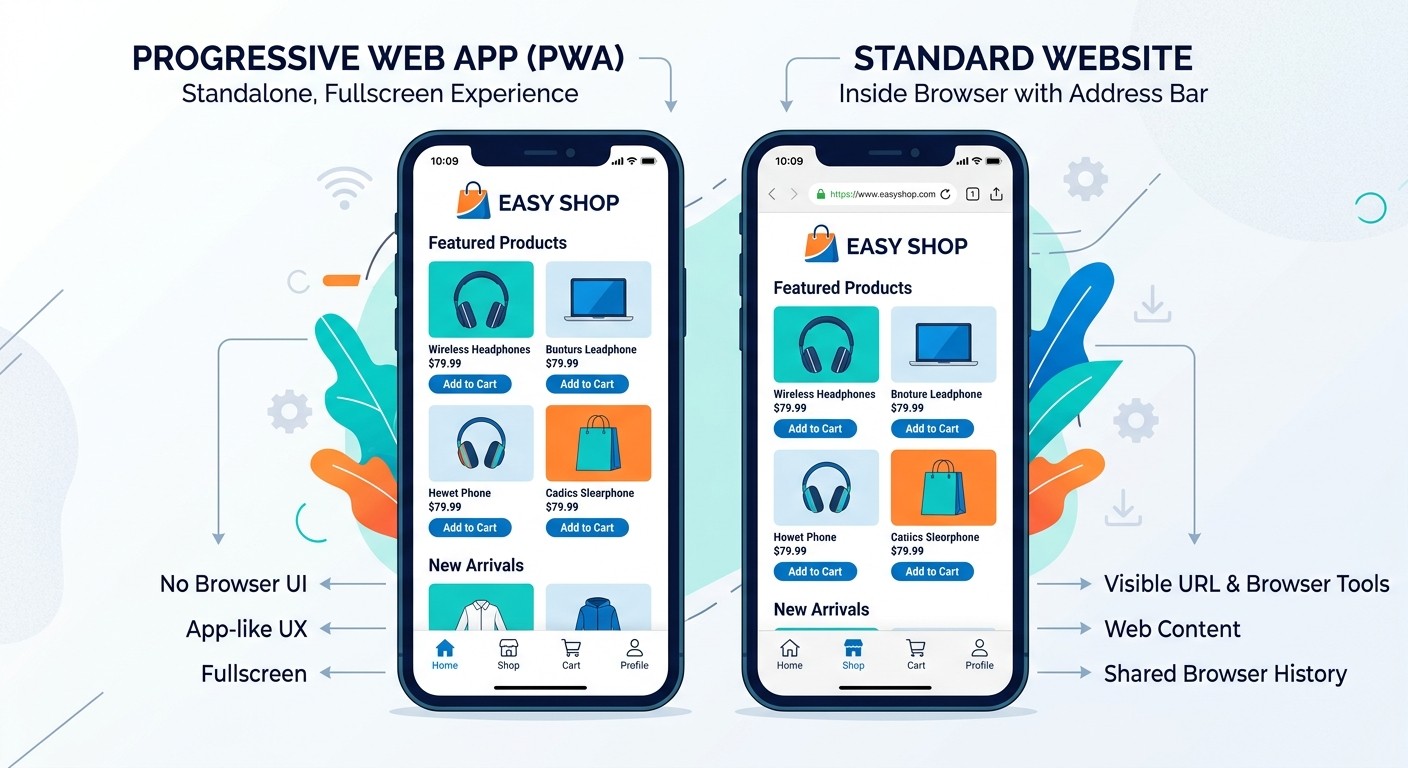
  • Instant Access: The icon launches your site in its own clean window, no browser address bar in sight. It feels like a dedicated app.

  • No App Store Needed: People can "install" your web app straight from their browser. No searching, no waiting, no app store approvals.

  • Offline Functionality: Many PWAs can cache content, which means they still work even when the internet connection is spotty or gone completely.

The Business Case for Installable Web Apps

For any business, getting users to add your icon to their homescreen is a smart move for boosting engagement and keeping them around. A permanent spot on someone's home screen is prime digital real estate, turning a one-time visitor into a regular user.

Every tap on that icon is a direct line to your brand, cutting through the noise of search engines and social feeds where your competitors are just a click away. It’s how you build a more loyal audience.

An icon on the home screen acts as a constant, visible reminder of your service. It transforms a one-time visit into an ongoing relationship, significantly boosting the lifetime value of a customer.

How Modern Platforms Make PWA Creation Easy

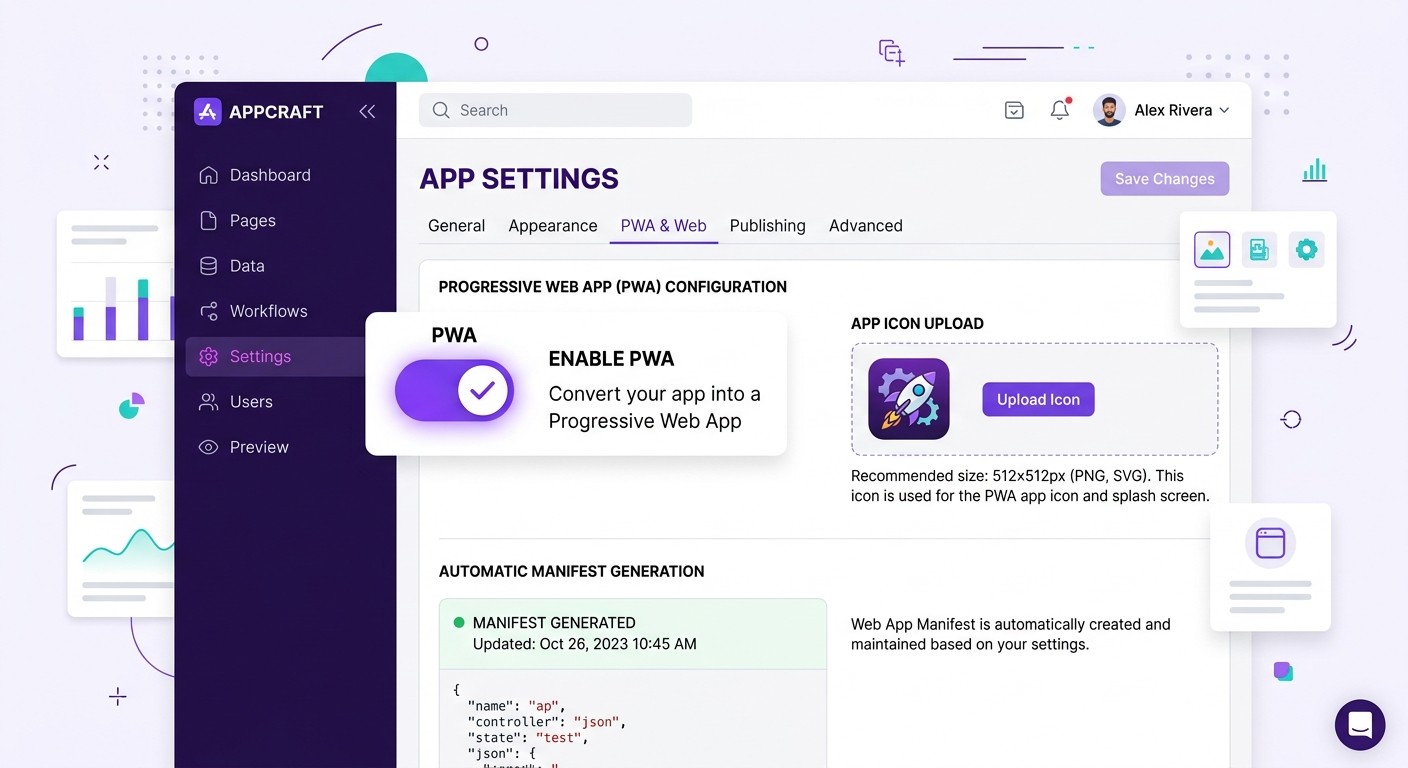
The best part? You no longer need a huge development team to make this happen. Modern platforms have built-in tools that handle all the technical heavy lifting for you. A platform like CatDoes, for instance, lets creators enable PWA builds with a single toggle.

You just upload your icons and tweak a few settings, and CatDoes automatically generates the required files, like the manifest.json, and injects the necessary meta tags. This means even creators without a technical background can launch a professional, installable web app. It’s this kind of accessibility that empowers more businesses to offer the seamless, app-like experiences their users now demand.

Adding a Website Icon to Your Phone's Homescreen

Getting a shortcut to your favorite website onto your phone’s main screen is one of those simple tricks that feels like a superpower. It only takes a few seconds and puts an add to homescreen icon right next to your other apps for one-tap access.

You don't need any technical skills for this. Modern mobile browsers have the feature baked right in. Whether you're on an iPhone or an Android, the basic idea is the same: find the browser's "share" or "menu" option and tell it to save a link to your home screen. Let's walk through exactly how to do it on the most common devices.

For iPhone and iPad Users with Safari

Apple tucks this feature into a place you probably already use: the universal "Share" button in Safari. It’s the same one you use to send links to friends or save articles to read later.

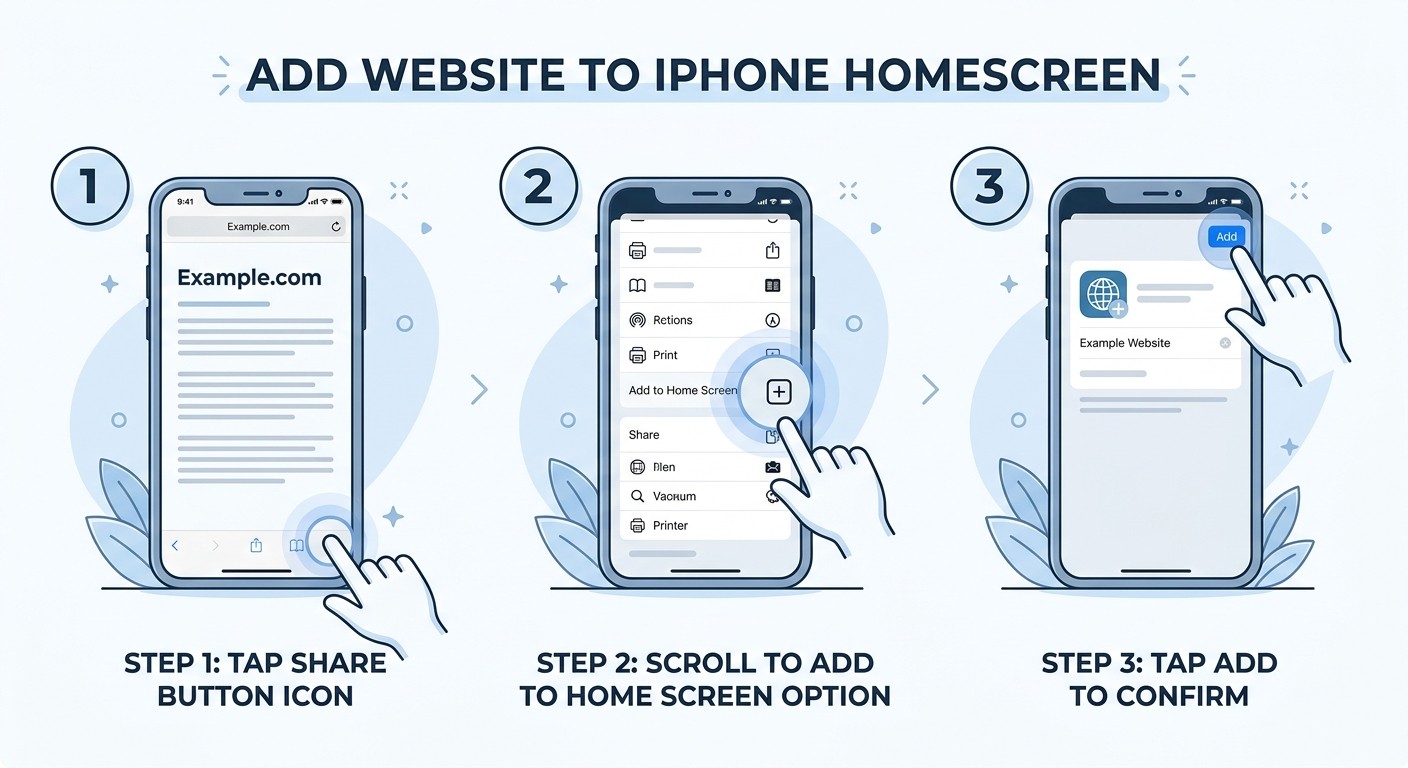
First, pull up the website you want to save. Once the page is loaded, tap the Share icon at the bottom of the screen. It is the little square with an arrow pointing up. This brings up a whole menu of actions.

Just scroll down that list until you see "Add to Home Screen." Give it a tap. You'll get a confirmation screen showing the icon the website provides and letting you tweak the name that appears below it. Hit confirm, and the new icon will pop onto your home screen.

Think of this like creating a VIP entrance for a website. Instead of typing a URL or digging through bookmarks, you have a direct, app-like button that takes you exactly where you want to go. It’s a game-changer for sites you visit daily.

For Android Users with Google Chrome

The process on Android is just as quick, though the wording might be a little different. In Google Chrome, the feature lives inside the main menu.

Start by opening Chrome and navigating to the site. Tap the three-dot menu icon in the top-right corner. This opens a dropdown list of options for the page you're on.

Look for an option that says "Install app" or sometimes "Add to Home screen." You'll usually see "Install app" for sites that are set up as Progressive Web Apps (PWAs), which deliver a more integrated, native-app feel. If the site isn't a PWA, it'll likely say "Add to Home screen" instead.

Tapping either one prompts you to confirm. You can then add the icon automatically or place it manually, depending on your phone’s settings. Either way, you get a handy shortcut for instant access. If you're curious about the developer side of this, our guide on how to turn your website into an app explains what it takes to enable this feature.

Instructions for Other Common Browsers

While Safari and Chrome have most of the market cornered, other browsers handle this just as well. The steps are almost always the same: find a menu or share button.

  • Samsung Internet: A popular choice on Samsung phones. The process is a lot like Chrome's. Go to the site, tap the hamburger menu (three horizontal lines) at the bottom right, and choose "Add page to." From the next menu, pick "Home screen."

  • Mozilla Firefox: On Firefox for Android, head to the site, tap the three-dot menu, and select "Install." This works best with PWAs and creates a clean icon on your home screen.

  • Microsoft Edge: Edge users on mobile will find this familiar. Visit the website, tap the three-dot menu at the bottom, scroll through the options, and tap "Add to phone."

No matter which browser you use, the ability to add a site icon is almost always there. It fundamentally changes how you use your favorite sites, making them feel less like web pages and more like a core part of your phone.

A Developer's Checklist for PWA Installation

To make your website feel like an app that users can install, you need to give browsers a specific set of instructions. This is where the developer's work is crucial. Creating a seamless add to homescreen icon experience comes down to a few key technical pieces that signal to browsers like Chrome and Safari that your web app is ready for prime time.

The whole process really hinges on two main elements: a Web App Manifest file and a complete set of high-quality icons. Getting these right is the difference between your site being a simple browser bookmark versus a genuine, app-like experience for your users.

This visual guide shows the simple steps users take on different devices to add your site to their home screen.

Visual guide showing how to add a website to the home screen on iPhone, Android/Chrome, and Samsung devices.

As the infographic shows, while the action is straightforward for users, the entry point varies just enough across platforms like iOS and Android to be aware of.

The Web App Manifest

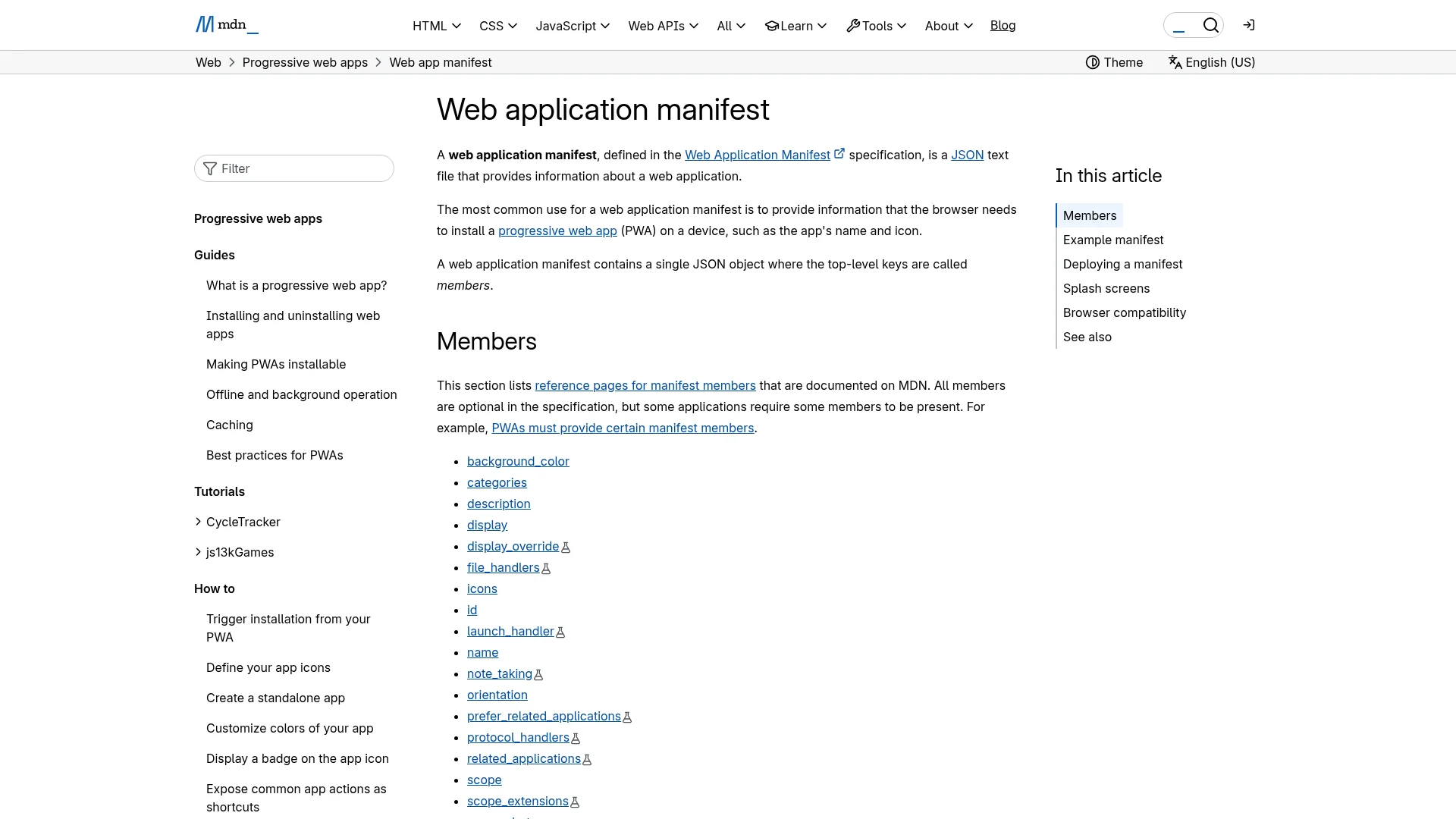
The cornerstone of any Progressive Web App (PWA) is the manifest.json file. It's just a simple JSON file that you link in the <head> of your HTML, but it's what gives the browser all the essential information about your web app and how it should behave once it’s 'installed' on a user's device.

Think of the manifest as a passport for your web app. It declares its identity, what it should be called, which icon to use, and how it should launch.

PWAs represent a powerful category of applications that users can add directly to their home screens, blending the best of the web and native apps. This matters because it's a direct path to the 6.3 billion smartphone users out there. The PWA market is on track to hit 10.77 billion dollars, which shows just how much businesses are betting on this technology.

Here's a quick reference table for the most critical properties you'll need in your manifest.json to get everything working smoothly.

Essential Web App Manifest Properties

Property

Description

Example Value

name

The full name of your application, shown in the install prompt.

"My Awesome Web App"

short_name

A shorter name used on the home screen where space is tight.

"AwesomeApp"

icons

An array of image objects with different sizes for various contexts.

[{"src": "/icon-192.png", "type": "image/png", "sizes": "192x192"}]

start_url

The URL that loads when the user launches the app from their home screen.

"/"

display

Controls the display mode. standalone hides the browser UI for an app-like feel.

"standalone"

Getting these properties right is the first major step toward a polished, installable experience.

Creating a Full Suite of Icons

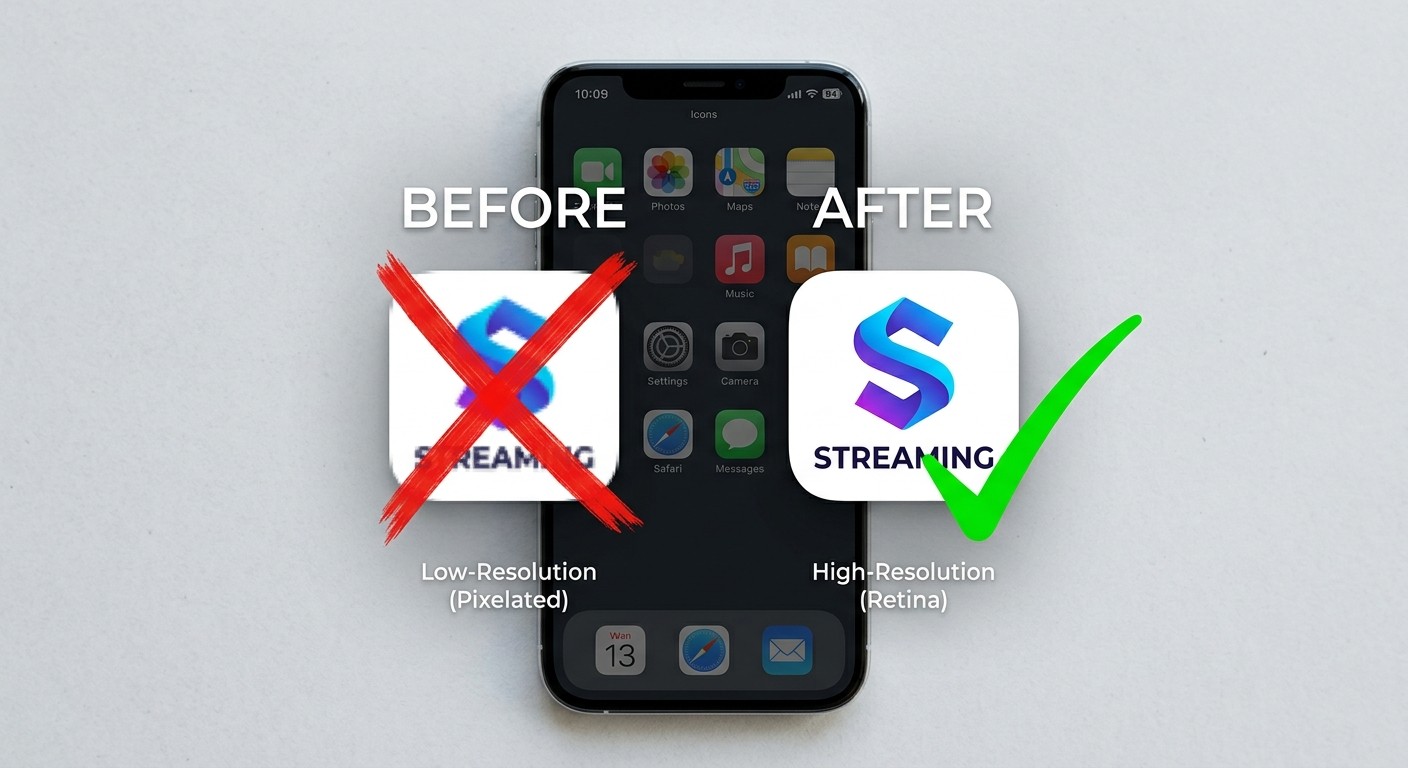
A blurry or poorly cropped icon can completely ruin a user's first impression. To make sure your add to homescreen icon looks crisp on every single device, you absolutely must provide a range of icon sizes in your manifest file.

Why? Modern devices have wildly different pixel densities and display requirements. A single icon will get stretched or squashed, leading to a terrible visual result.

A polished icon is not just a cosmetic detail; it is a sign of a professional, trustworthy application. Users are far more likely to engage with an app that looks like it belongs on their home screen.

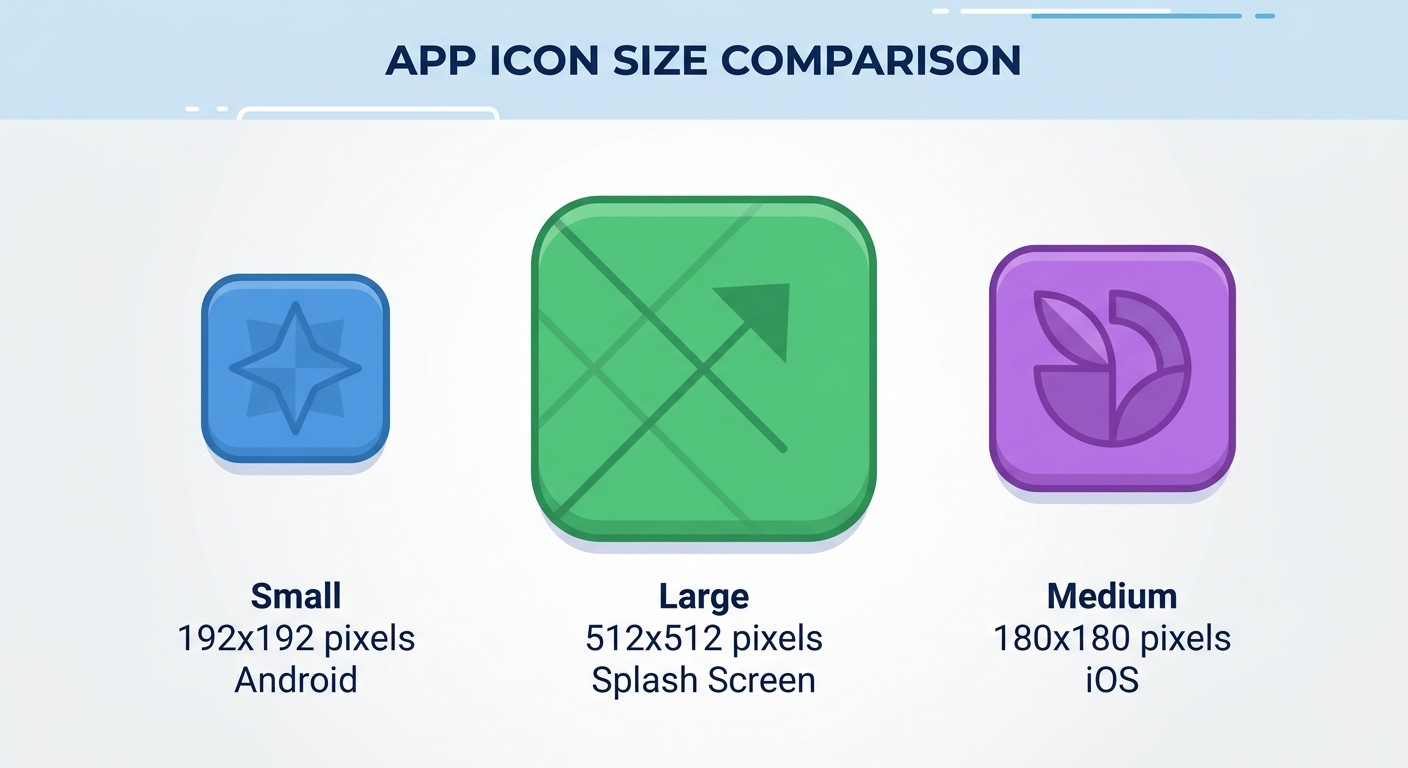
At a bare minimum, you should include these two sizes to cover most Android devices:

  • 192x192 pixels

  • 512x512 pixels

That 512x512 icon is especially important because it's often used for the splash screen that appears while the PWA is loading. For anyone serious about developing effective mobile web applications, optimizing these visual assets is non-negotiable for installability.

Special Considerations for iOS and Safari

While Android and Chrome heavily rely on the manifest.json file, Apple’s iOS has its own way of doing things. To ensure your web app looks perfect on an iPhone or iPad, you need to add specific meta tags to your HTML's <head> section.

The most important one by far is the apple-touch-icon.

This tag tells Safari which icon to use when a user adds your site to their home screen. Unlike the manifest, you link this directly in your HTML. The good news is you can usually just provide a single, high-resolution icon, and iOS will handle the rest. A size of 180x180 pixels is a safe bet for all modern iPhones.

You can also add other Apple-specific meta tags to fine-tune the experience, like apple-mobile-web-app-capable to make it launch in a full-screen, chromeless window. If you're weighing the pros and cons, you can dive deeper by reading our guide comparing Progressive Web Apps versus native apps.

Enabling Your Homescreen Icon with CatDoes

While there's a whole technical checklist for getting that "add to homescreen" icon to work in traditional development, platforms like CatDoes flip the script entirely. What used to be a fussy coding task becomes a simple set of toggles and uploads.

The platform handles the entire workflow for you, saving you from the weeds of implementation details so you can focus on your app's actual vision. The goal is to deliver a professional, installable web app experience without you ever touching a manifest file or meta tag.

This is a huge deal. The iOS App Store alone is projected to host nearly 2 million apps by 2025, with users downloading over 38 billion apps a year. But the real fight is for attention. After just 30 days, the average app loses all but 3.7% of its users. An easily accessible icon on the home screen is a critical tool for staying top-of-mind.

Activating Your PWA Build in CatDoes

Inside the CatDoes platform, making your web app installable is refreshingly simple. You don't need to learn the PWA spec; you just need to tell CatDoes you want it.

All it takes is finding the PWA build option in your project settings. Flipping this on tells CatDoes to get all the necessary components ready for a fully installable web application. Once enabled, the platform does all the heavy lifting in the background.

This means you get a top-tier product that feels like a native app without any of the manual setup. It's a massive time-saver for developers and a genuine game-changer for non-technical founders who just want to get their idea out there.

With CatDoes, you’re not just building a website; you’re creating a launch-ready PWA. The platform takes your design and logic and automatically packages it with the underlying technology needed for a seamless add to homescreen experience.

Uploading and Managing Your App Icons

A sharp, professional-looking icon is your app's first impression. CatDoes simplifies this by giving you a dedicated spot to upload your main icon artwork, removing the tedious job of creating a dozen different icon files yourself.

You provide the primary design, and CatDoes handles the rest:

  • Automatic Resizing: The platform generates all the required icon sizes to ensure your app looks crisp on any device, from a small smartphone to a large tablet.

  • Manifest Integration: It automatically links these icons within the manifest.json file, so browsers know exactly which image to use.

  • Apple Touch Icons: CatDoes also includes the necessary apple-touch-icon meta tags, ensuring a perfect look for users on iPhones and iPads.

This completely removes the guesswork. You just focus on creating a beautiful brand icon, upload it, and the system ensures it’s implemented correctly for every platform.

The Magic of Automatic Manifest Generation

The most powerful part of the CatDoes workflow is how it automatically generates the manifest.json file. As we covered, this file is the brain of your installable web app, holding all the crucial metadata browsers need.

Instead of you writing this file by hand, CatDoes builds it from the information you've already provided in your project settings. It pulls your app's name, start URL, display mode, and more into a perfectly formatted manifest. This ensures your PWA isn't just installable; it behaves exactly as you intend when launched from the home screen.

For developers, this shaves hours off the build process. For creators without a technical background, it makes launching a professional PWA a reality without hiring a specialist. It’s just one of the ways you can start your app-building journey on a platform that does the hard work for you.

Fixing Common Add to Homescreen Problems

Even with a perfect setup, you can still hit a few snags with the add to homescreen icon feature. A user might report the install prompt never showed up, or maybe the icon looks blurry on their new high-res phone. These things happen all the time, but thankfully, they're almost always fixable with a bit of targeted troubleshooting.

We’ll walk through the most common frustrations developers and users run into, diagnose the root cause, and give you clear, actionable ways to get your PWA working exactly as it should. The goal is to debug this stuff fast so you can get back to delivering a flawless user experience.

When the Install Prompt Is Missing

One of the most frequent headaches is the browser simply refusing to show the "Install app" or "Add to Home Screen" prompt. It's frustrating because that prompt is the main gateway to getting your PWA onto a user's device. When this happens, it’s usually because one of two core requirements isn't being met.

First, check your security. Modern browsers won’t even consider installing a PWA unless it’s served over HTTPS. This is a non-negotiable security standard that protects your users. If your site is still on HTTP, that's the very first thing you need to fix.

Second, take a close look at your manifest.json file. The browser needs this file to even recognize your site as an installable app.

  • Is it linked correctly? Make sure you have a <link rel="manifest" href="/manifest.json"> tag in the <head> of your HTML. A simple path error will break everything.

  • Is it valid JSON? A single misplaced comma or typo can make the whole file unreadable to the browser. Run it through a validator to be sure.

  • Does it have the essentials? At a bare minimum, you need short_name, name, icons, and start_url present and correctly configured.

Solving Blurry or Pixelated Icons

A fuzzy or pixelated icon on a high-resolution screen can instantly make your app feel cheap or untrustworthy. This problem almost always comes down to not providing a full set of icon sizes. If you only give the OS one small icon, it will try to stretch it to fit, causing that awful distortion.

The solution is to head back to your manifest.json file and your Apple meta tags. Make sure you’re declaring a variety of icon sizes to cover different screen densities. A good starting point is to provide at least a 192x192 pixel icon and a larger 512x512 pixel one for Android. For iOS, you’ll want to ensure your apple-touch-icon is at least 180x180 pixels.

A crisp, clear icon is not just a cosmetic detail. It is a fundamental part of the user experience that signals quality and builds trust before the user even opens your app.

Why Your PWA Opens in a Browser Tab

The whole point of a PWA is to feel like a native app, which means launching in its own window, free of the browser’s address bar and buttons. If your app opens in a regular browser tab instead, the culprit is almost certainly the display property in your manifest.json file.

For that native, app-like experience, this property has to be set to "standalone" or "fullscreen". If it's set to "browser" or is missing entirely, the OS will just treat it like a standard website bookmark. A quick check and edit of this single line can completely transform the feel of your application. If you run into other issues, knowing how to troubleshoot app errors across devices is a valuable skill for ensuring a smooth experience.

This behavior also highlights a key difference in user habits. As of 2025, 76% of Android users regularly customize their home screens with shortcuts and widgets, compared to just 41% of iPhone users. This suggests that Android users may be more attuned to and have higher expectations for how these web apps behave. You can discover more insights about these platform differences on sqmagazine.co.uk.

Your Top Questions About Homescreen Icons, Answered

Adding an app icon to your phone's home screen is one of the most powerful features of the modern web. But it also brings up a lot of questions, both for users and for the developers building these experiences. Let's clear up some of the most common ones.

We'll cover why some sites feel like real apps while others don't, what makes these different from something you'd download from an app store, and troubleshoot why that "Install" button might not be showing up.

Can I Add Any Website to My Home Screen?

Yes, you absolutely can. Every modern mobile browser, from Safari on your iPhone to Chrome on your Android, lets you pin a shortcut to nearly any website right onto your home screen. It's a fantastic way to get one-tap access to sites you visit constantly.

But there’s a catch, and it’s a big one. The experience you get is completely different depending on how the site was built. Only websites designed as Progressive Web Apps (PWAs) will give you that true, native-app feeling. They launch in their own dedicated window, completely separate from the browser, with no address bar in sight. Any other site will just open up in a new browser tab, feeling more like a simple bookmark than a real app.

What's the Difference Between a Homescreen Icon and a Native App?

The fundamental difference comes down to how they're built and where you get them. A homescreen icon for a PWA is a supercharged shortcut to a website, while a native app is a separate piece of software you have to find, download, and install from an official marketplace like the Apple App Store or Google Play.

Here’s a quick breakdown of what that means in practice:

  • Getting the App: Native apps mean a trip to the app store, waiting for a download, and going through an installation process. A PWA is "installed" instantly, right from the website, with a single tap.

  • Device Access: Native apps have traditionally had deeper hooks into your phone's hardware, like full access to your contacts or advanced camera features. PWAs are closing this gap fast, but they still operate within the secure sandbox of your browser.

  • Keeping it Fresh: Native apps need you to manually update them (or wait for your phone to do it overnight). PWAs update themselves silently in the background every time you open them. You're always on the latest version, no effort required.

While native apps can offer deep device integration, the instant, zero-friction installation of a PWA is its superpower. It completely bypasses the crowded, competitive world of app stores, making it an incredible tool for getting and keeping users engaged.

Why Isn't the "Install App" Option Showing Up?

This is probably the most common frustration developers run into, and it almost always comes down to a few missing puzzle pieces. If you're not seeing the "Install app" or "Add to Home Screen" prompt, chances are high it's one of these two things.

First, the website absolutely must be served over a secure HTTPS connection. This is a non-negotiable security standard for virtually all modern web features, especially PWAs. Browsers simply won't offer an install prompt for any site still limping along on HTTP.

Second, the site needs a valid and correctly configured Web App Manifest file (usually called manifest.json). This little file is what tells the browser, "Hey, I'm not just a website, I'm an installable app!" If that file is missing, has a typo, or is missing key details like a name or a set of icons, the browser won't recognize it as a PWA, and the install option will never appear.

How Do Web Apps on My Homescreen Get Updated?

This is one of the best parts about PWAs: the update process is completely invisible and automatic. You never have to do a thing. It's a massive advantage over native apps, which constantly nag you to visit the app store and download the latest version.

The browser handles everything behind the scenes. When a developer releases a new version of their web app, your browser detects the changes the next time you're online. It fetches the new files and updates its cache. The next time you tap that add to homescreen icon, you’re instantly running the latest and greatest version, with all the new features and security fixes, without ever knowing an update even happened.

Ready to turn your idea into a production-ready app without the hassle? With CatDoes, our AI agents handle the design, coding, and backend setup for you. Go from concept to a fully functional PWA or native app faster than ever before. Start building for free on CatDoes today!

Writer

Nafis Amiri

Co-Founder of CatDoes